バーチャルシンガー製品共通インストールガイド(Windows編)
-
■「ボイスライブラリー」と「Piapro Studio NT2」のインストール(Windows)
-
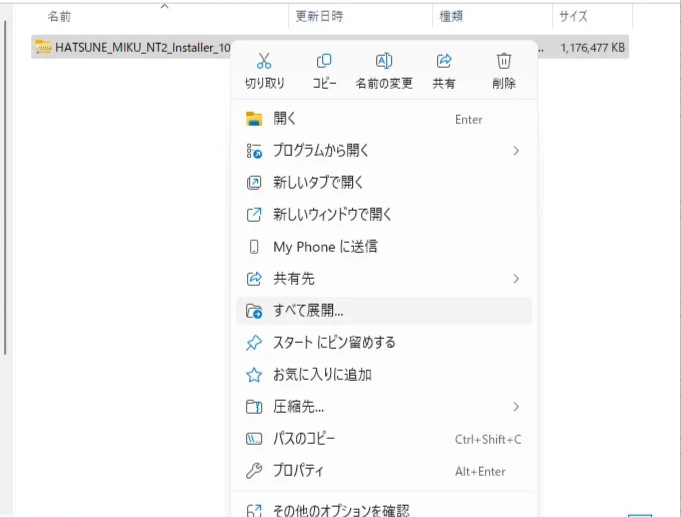
ダウンロードしたzipファイルの展開
ダウンロードしたzipファイル(例:「HATSUNE_MIKU_NT2_Installer_1012.zip」など)を右クリックしてから、「すべて展開」をクリックします。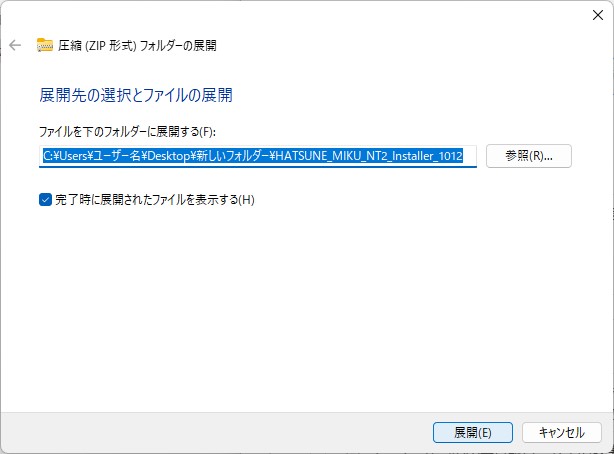
表示されたウインドウで、「展開」をクリックしてzipファイルを展開/解凍します。
※解凍に失敗してしまう場合は、「7-zip」等の別ソフトをご使用いただき解凍をお試しください。 -

「Crypton Product Installer」の起動
展開されたフォルダ内の「Crypton Product Installer」をダブルクリックします。この際、「このアプリがデバイスに変更を加えることを許可しますか?」といった「ユーザーアカウント制御」の警告が表示される場合は、「はい」をクリックします。 -
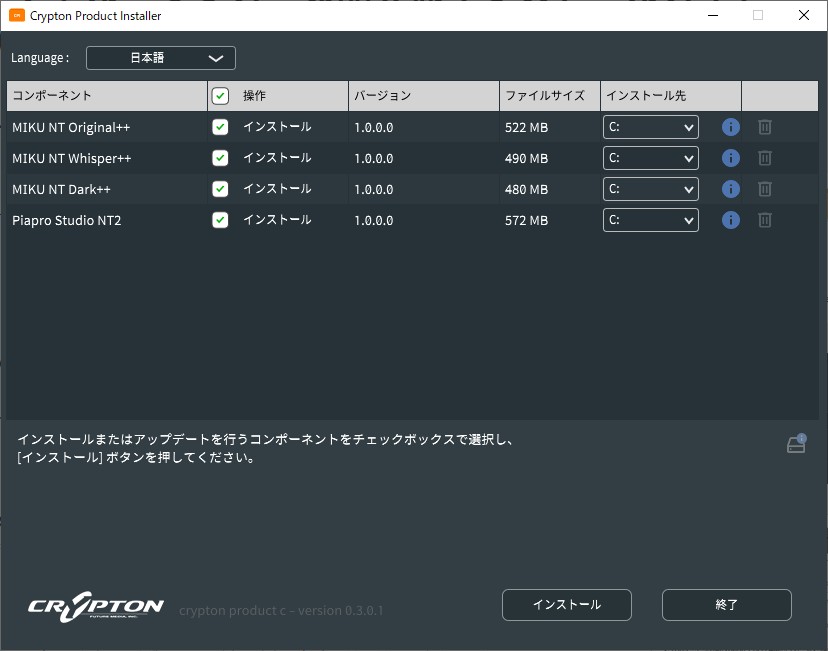
「Crypton Product Installer」起動画面
Crypton Product Installerでは、バーチャルシンガー製品のボイスライブラリーとPiapro Studio NT2のインストールを同時に行います。インストールしたい項目の「操作」列にある全てのチェックボックスにチェックが入っていることを確認してから、[ インストール ] ボタンをクリックします。 -
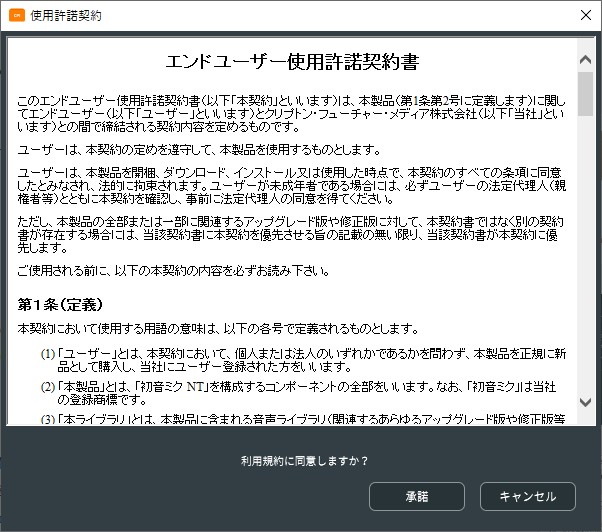
ボイスライブラリー(NT Voice Library)の「エンドユーザー使用許諾契約」画面
使用許諾契約書への同意をたずねる画面です。内容をご確認の上、[ 承諾 ] ボタンをクリックします。 -
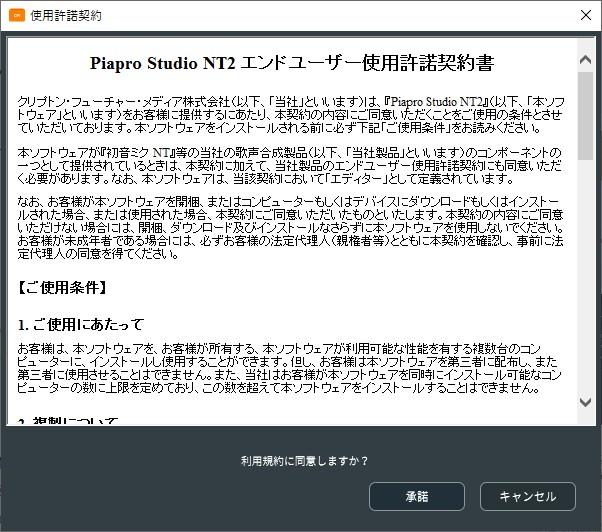
「Piapro Studio NT2」の「エンドユーザー使用許諾契約」画面
使用許諾契約書への同意をたずねる画面です。内容をご確認の上、[ 承諾 ] ボタンをクリックします。 -
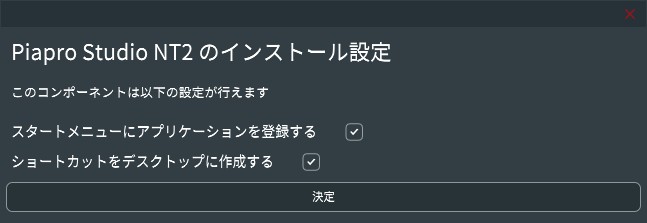
「Piapro Studio NT2 のインストール設定」画面
必要な項目にチェックを入れ、[ 決定 ] をクリックします。 -
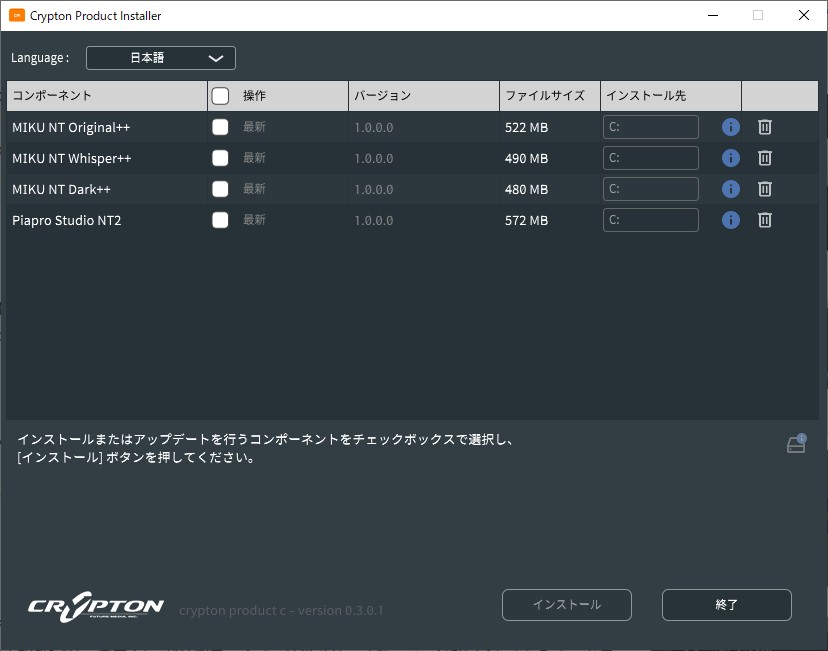
「Crypton Product Installer」画面
再度「Crypton Product Installer」画面が表示されます。手順1で選択した項目の「操作」列が全て「最新」になっていれば、インストールは完了です。
-
-
■ボイスライブラリーのアクティベーション(Windows)
この作業はインターネット環境が必要です。事前に必ずインターネットに接続してください。
ボイスライブラリー(初音ミク NTなど)をご使用いただくために、以下の手順でアクティベーション(認証)を行ってください。-
「Piapro Studio NT2」アプリケーションを起動します。
デスクトップに作成されている「Piapro Studio NT2」アイコン、あるいは、[ スタート ]ボタン→ [ Crypton ] → [ Piapro Studio NT2 ] アイコンをクリックします。 -
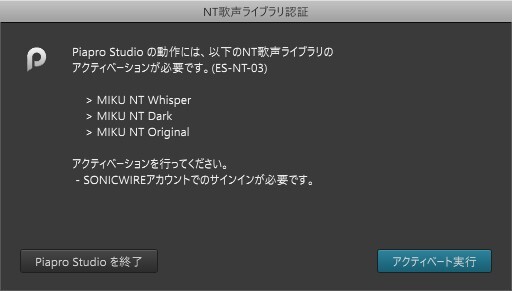
「NT歌声ライブラリ認証」画面
「Piapro Studio NT2」の画面上部にある「ヘルプ」→「NT歌声ライブラリ認証…」をクリックします。「NT歌声ライブラリ認証」画面が開いたら [ アクティベート実行 ] ボタンをクリックします。 -
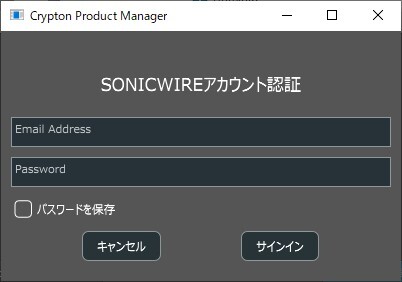
「SONICWIREアカウント認証」画面
バーチャルシンガー製品購入時のSONICWIREアカウントの、Emailアドレスとパスワードを入力し、次回以降の入力をスキップする場合は[ パスワードを保存 ] にチェックを入れて、[ サインイン ]をクリックします。 -
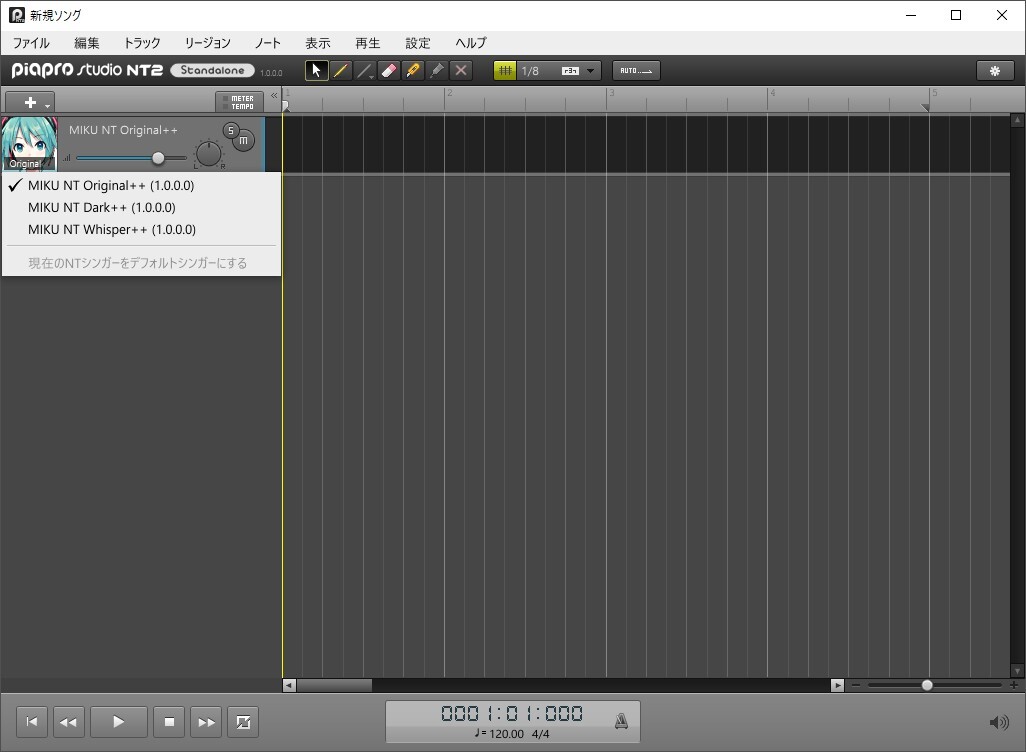
アクティベ-ション完了
「Piapro Studio NT2」画面が表示されます。ライブラリの一覧を開いて全ての音声ライブラリが使用可能になっていれば、アクティベーションは完了です。
-
以上でボイスライブラリと Piapro Studio のインストールならびにアクティベーションは完了です。
DAW ソフト「Cubase LE」をお使いになる方は、別途「購入製品一覧」ページからご確認いただける導入手順に沿って、「Cubase LE」をインストールしてください。
なお「Piapro Studio」のオペレーションマニュアルは、「Piapro Studio」の画面上部の「ヘルプ」→「マニュアル」からご参照いただけます。
SONICWIRE取扱い全製品を表示したい場合は、SONICWIREを日本語で閲覧されることをお奨めいたします。