How to Register Your "License Key" on SONICWIRE
- FAQ No.:898
- FAQ Category:Store Guide
- Updated Date:25.5.9
If you have "License Key" to register a product on SONICWIRE, you can receive the installer and refer to the installation guide by registering it you received. Please follow the steps below to register your License Key.
By registering the "License Key" you received at the time of product purchase on the SONICWIRE website, a "Serial Number" (*), which is used for authentication on the developer's website, in the software, etc., will be issued. Please use this "Serial Number" for the authentication process after installing the product.
*Note: Depending on the manufacturer or product, the "Serial Number" may be referred to by a different name, such as "Serial Code" or "Activation Code", or authentication may not be required at all. For details, please refer to the installation procedure that can be accessed from your "Licensed Products" Page after registering your "License Key".
※日本語のガイドはこちらからご覧いただけます。
How to Register License Key on SONICWIRE
1. Sign in to SONICWIRE or Register as a New User
Access this page and sign in or register as a new user.
For those who already have a SONICWIRE account:
Enter your email address and password to sign in to your SONICWIRE account.
For those who do not have a SONICWIRE account:
Click the "User Registration" link at the bottom of the page and follow the on-screen instructions to complete your user registration.
2. Enter and Register Your License Key
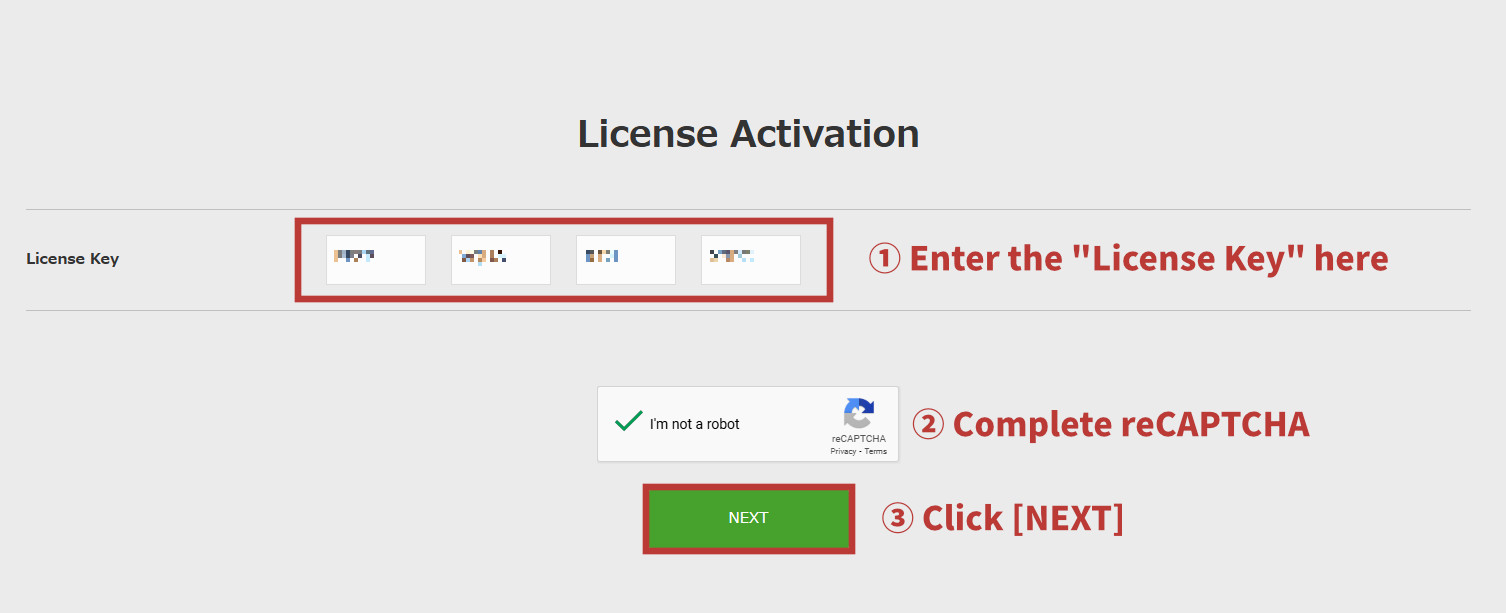
Access this page ("License Activation"), enter the "License Key" for the product you purchased, and click [Next].
*You can also access the "License Activation" page by clicking the My Page icon person at the top of the SONICWIRE website and selecting "License Activation" from the menu that appears.
Once a License Key is registered, it cannot be registered again.
For instructions on how to install products for which you have already registered a License Key, please check the Licensed Products page.
3. Confirm Product for License Registration
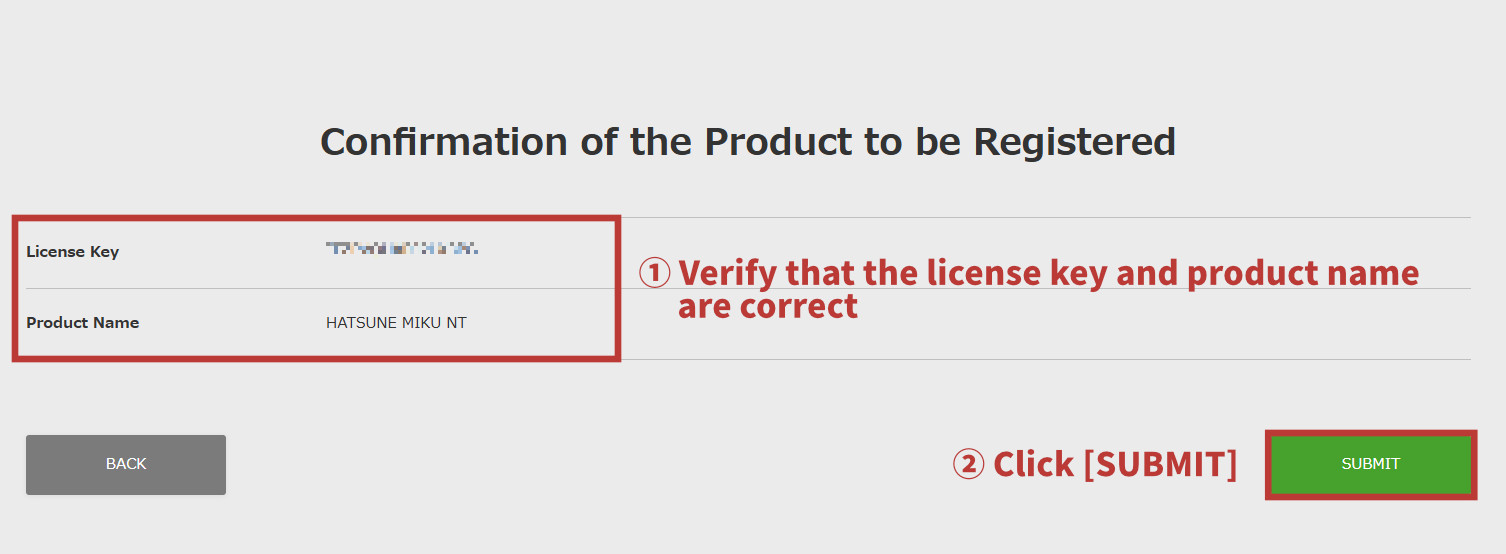
On the confirmation screen, verify that the license key and product name are correct, then click [SUBMIT].
4. License Registration Complete
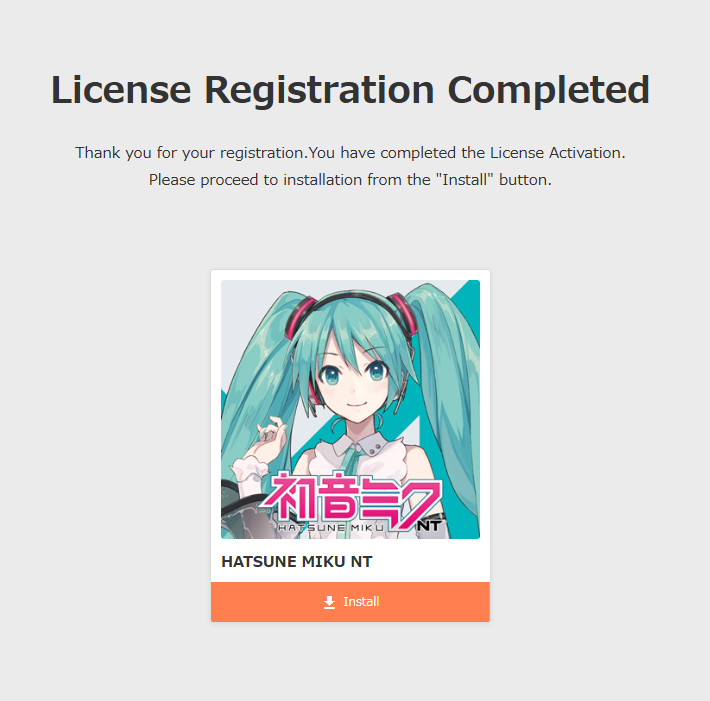
Once the "License Registration Complete" screen appears as shown in the image, the product registration is complete.
Click the [Install] button and follow the on-screen instructions to complete the installation.
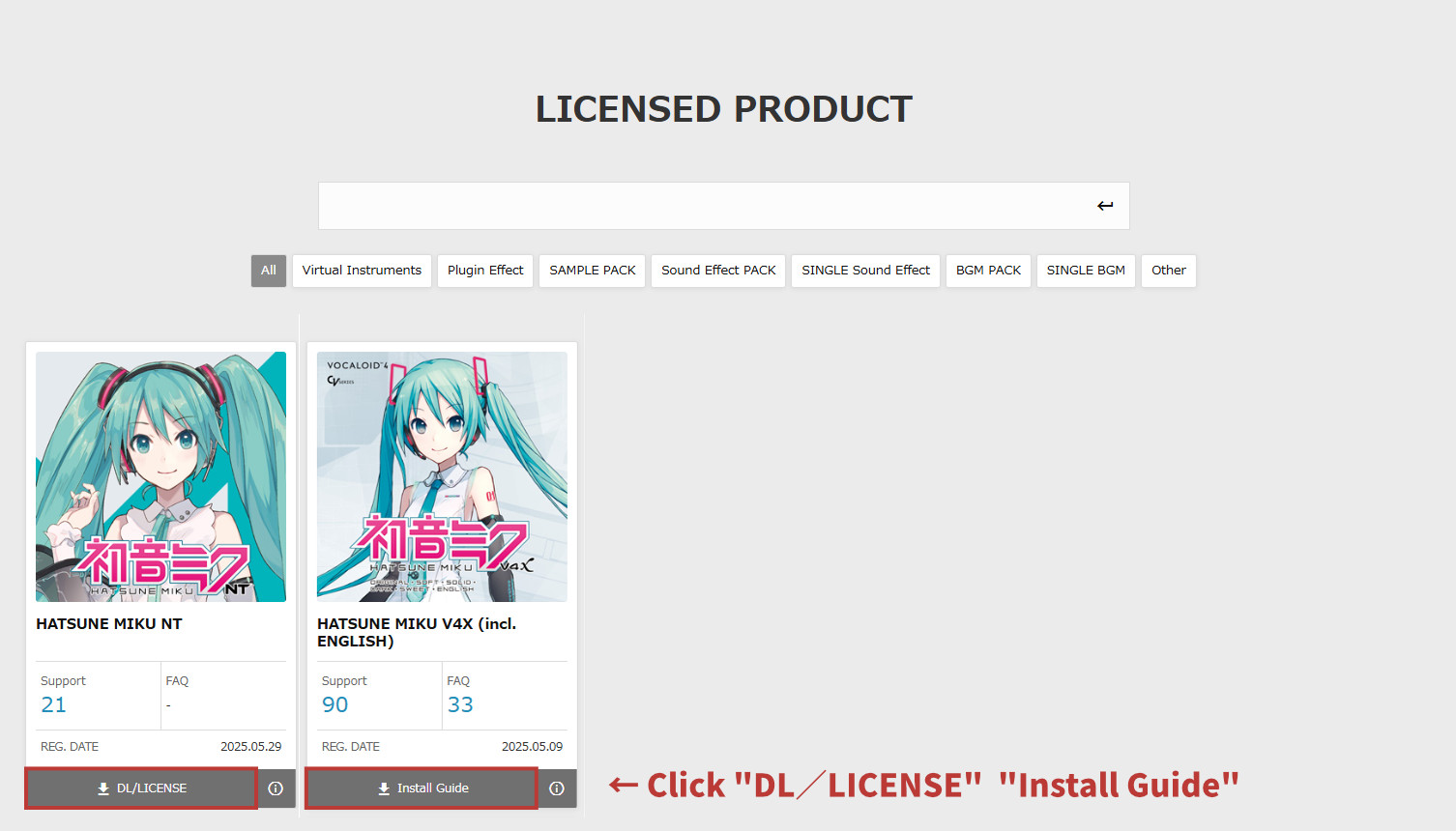
You can check the installation procedure and obtain the installer at any time from the "Licensed Products" page.
*You can also access the "Licensed Products" page by clicking the My Page icon person at the top of the SONICWIRE website and selecting "Licensed Products" from the menu that appears.
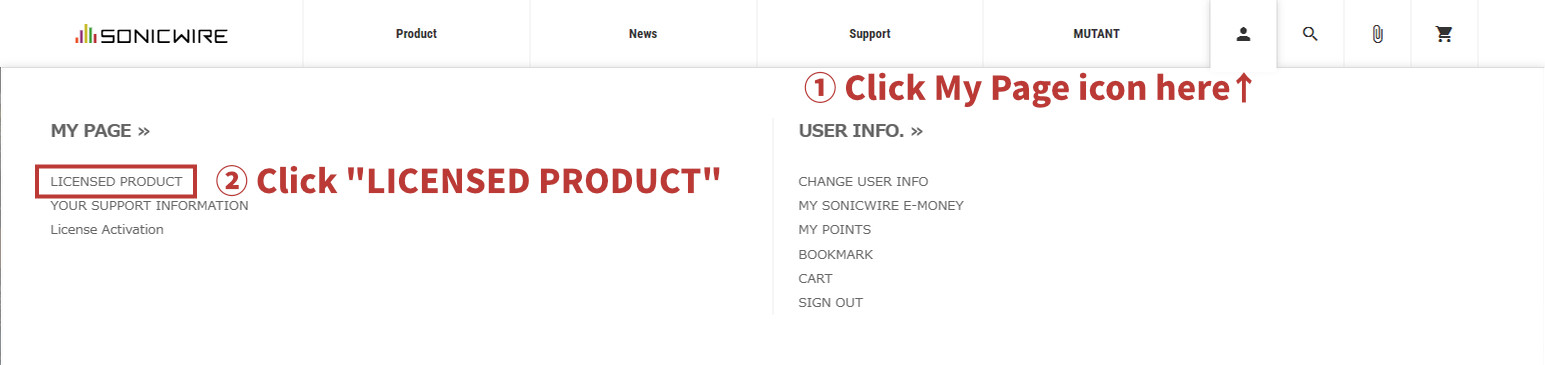
When you click on "DL/LISENCE"(in the case of "Hatsune Miku NT") or "Install Guide"(in the case of the other products), you can check the installation procedure and receive the installer for that product.
If you have any questions during installation, please contact us via the "Technical Support Desk".
SONICWIRE取扱い全製品を表示したい場合は、SONICWIREを日本語で閲覧されることをお奨めいたします。