PIAPRO STUDIO END USER LICENSE AGREEMENT
Crypton Future Media, INC. ("CRYPTON") is willing to provide Piapro Studio ("Software") to you only on the condition that you accept all of the terms contained in this Software License Agreement ("Agreement"). Please read the following Agreement carefully before you install the Software. By installing this Software, you accept all of the terms of the Agreement. If you do not agree to be bound by the terms, please do not install the Software, and you must delete or destroy the entire Software.
TERMS OF USE
1. SCOPE OF USE
You may install and use the Software on one computer only. You may not distribute the Software to third parties.
2. COPYING
You may make copies of the Software solely for backup or archival purposes.
3. RESTRICTIONS
You may not;
(1) copy the Software except as expressly permitted in 2 above.
(2) modify, disassemble, decompile, or reverse-engineer the Software.
(3) sell, distribute, rent, lease, lend, assign or transfer the Software to any third party.
4. INTELLECTUAL PROPERTY RIGHTS
All title and intellectual property rights in and to the Software and any copies you are permitted to make herein are owned by CRYPTON. The Software is protected by applicable copyright or other intellectual property laws and treaties. The Software is licensed, not sold nor given to you. Any intellectual property rights in and to the Software are not granted to you. You do not have a right to license the Software to any third party.
5. USE OF THIRD PARTY APPLICATION ON THE SOFTWARE
If you use any third party application program on the Software, you acknowledge and agree that your use of any such third party application program is governed by such third party application program provider's terms of use, license agreement, or other such agreement, and you must ensure you do not violate any of those agreements. You agree that the use of any third party application program on the Software is at your sole responsibility and CRYPTON expressly disclaims any liability in connection with any such third parties' application program or Agreement.
6. LIMITATION OF LIABILITY
TO THE MAXIMUM EXTENT NOT PROHIBITED BY LAW, IN NO EVENT SHALL CRYPTON OR ITS AUTHORIZED SUPPLIERS BE LIABLE FOR ANY SPECIAL, INCIDENTAL, INDIRECT, OR CONSEQUENTIAL DAMAGES WHATSOEVER (INCLUDING, WITHOUT LIMITATION, DAMAGES FOR LOSS OF INFORMATION, LOSS OF DATA, CORRUPTION OF FILES, OR ANY OTHER PECUNIARY LOSS) ARISING OUT OF THE USE OF OR INABILITY TO USE THE SOFTWARE, EVEN IF CRYPTON HAS BEEN ADVISED OF THE POSSIBILITY OF SUCH DAMAGES.
7. TERM AND TERMINATION
This Agreement is effective from the moment you accept all of the terms of this Agreement and install the Software, and will remain in full force until termination. This Agreement will terminate immediately if you fail to comply with any provision of this Agreement. Upon termination, you must destroy all copies of the Software.
8. GOVERNING LAW
Any action related to this Agreement will be governed by the laws of Japan. The Sapporo District Court in Japan shall have exclusive jurisdiction to adjudicate any dispute arising out of this Agreement.
9. ACKNOWLEDGEMENT
Crypton may at any time revise this Agreement, and you agree to be bound by this Agreement in the latest form by accepting any such revisions notified by Crypton or continue to use the Software knowing such revisions thereafter.
Introduction
Piapro Studio is the VSTi / AU compliant Vocal Editor that provides you the seamless operation between Host Applications. You can control HATSUNE MIKU V4X, KAGAMINE RIN/LEN V4X, MEGURINE LUKA V4X, HATSUNE MIKU V3, MEIKO V3, KAITO V3 very intuitively and without experiencing limitation of bar numbers. Piapro Studio supports popular DAW applications like PreSonus Studio One, Steinberg Cubase, Cakewalk SONAR, Ableton Live and MOTU Digital Performer, Apple Logic Pro, Garage Band and other.
Manipulation of Piapro Studio is quite easy. Just input the melody into the typical piano roll screen and English or Japanese lyrics. You can easily edit the dynamics or vibrato of each note by double-clicking on it. This manual guides you from basic to hands-on operation.
About the Piapro Studio Website
The most recently updated information and support for Piapro Studio software can be accessed on the Piapro Studio portal site. Any functions which have been installed on a trial basis, along with the easy to use guide and song making course will also be updated.
About Auto Update
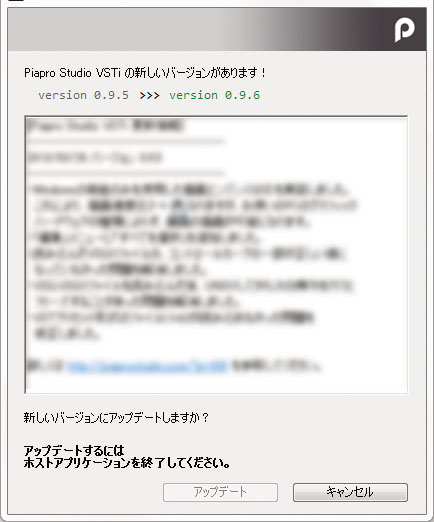
Piapro Studio implements an Auto Update function. As soon as the update deployed to our Crypton Future Media website, the pop-up window shown left will display (Internet connectivity required). When the pop-up window appears, click the "Update" button.
If the computer that hosts Piapro Studio does not have Internet connectivity, please view our Piapro Studio special website.
Setup
You need to start VSTi or AU compliant DAW Host Application first to use with Piapro Studio. This manual explains how to operate Piapro Studio using "Studio One Artist Piapro Edition ("Studio One")" bundled with KAGAMINE RIN/ LEN V4X, MAGURINE LUKA V4X, HATSUNE MIKU V3, MEIKO V3, KAITO V3.
1. Start Cubase
|
This procedure is for those who have “Cubase LE” bundled with a Virtual Singer product. If “Studio One Artist” was bundled with your product, please check this page. |

If you are using Windows, after installing Cubase and restarting your computer, the shortcut icon shown at left will be created on your desktop. Double-click this icon to launch Cubase.
If you are using a Mac, double-click the "Cubase LE" application in the Applications folder in Finder.
If you are using a Mac with an Apple Silicon chip such as the M1 chip, see “For Mac users with an Apple Silicon” below before starting Cubase.
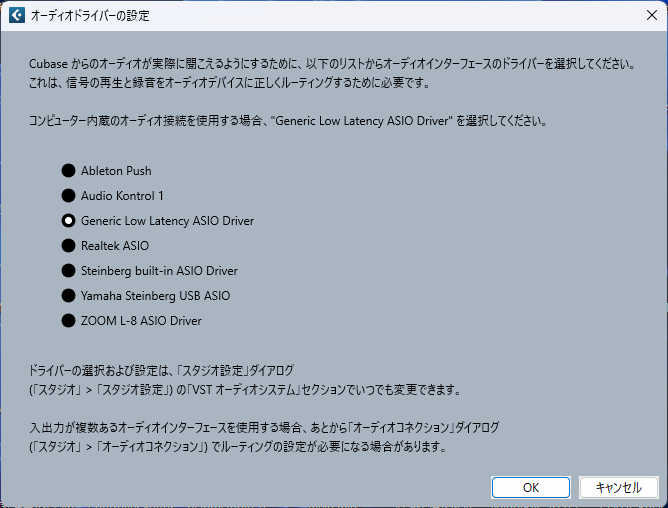
When “Cubase” is launched for the first time, the audio driver settings (see below) will appear. First, set the audio driver so that the sound will come out correctly from your speakers and headphones. Select the audio driver you want to use and press the “OK” button.
If you want to change the audio driver after the first startup, please refer to “2. Setting up the audio device” in the next chapter.
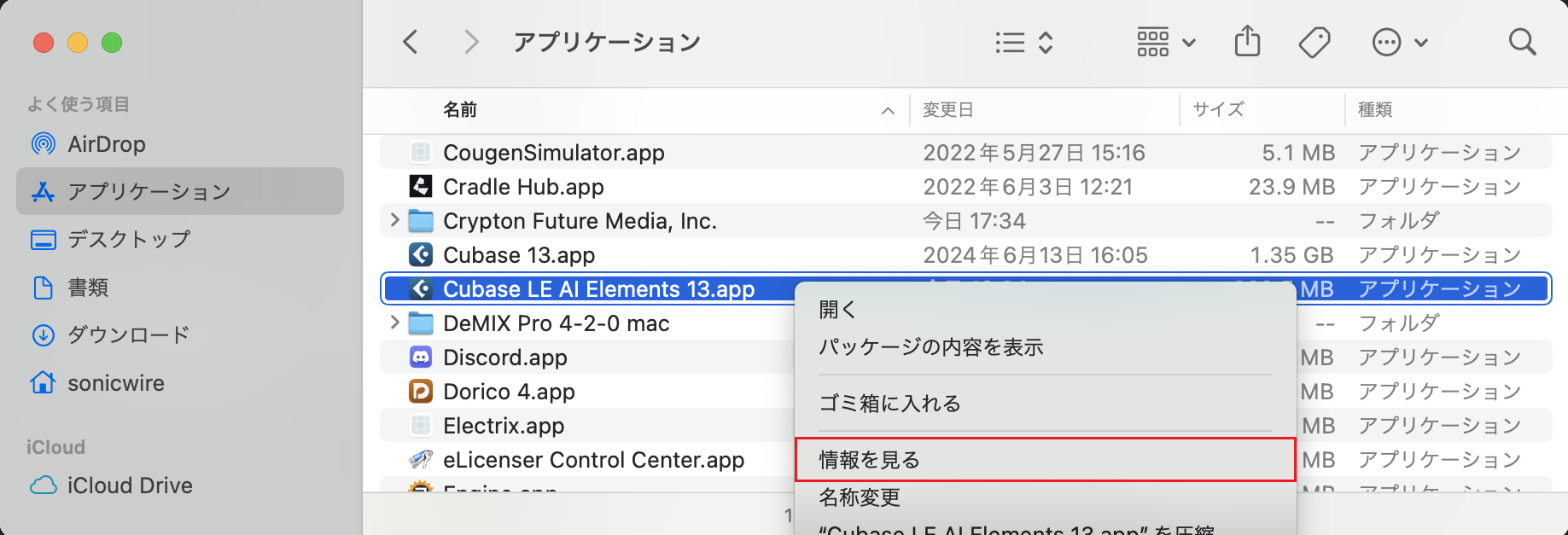
For Mac users with an Apple Silicon"Piapro Studio NT" is currently not natively compatible with Apple Silicon-based Mac. * This operation is not required for Mac with Intel CPUs. To open Cubase with Rosetta, follow the procedure below: 1. Open “Applications” in Finder, right-click on “Cubase LE AI Elements XX.app” and click “Get Info”. * "XX" is the version number.
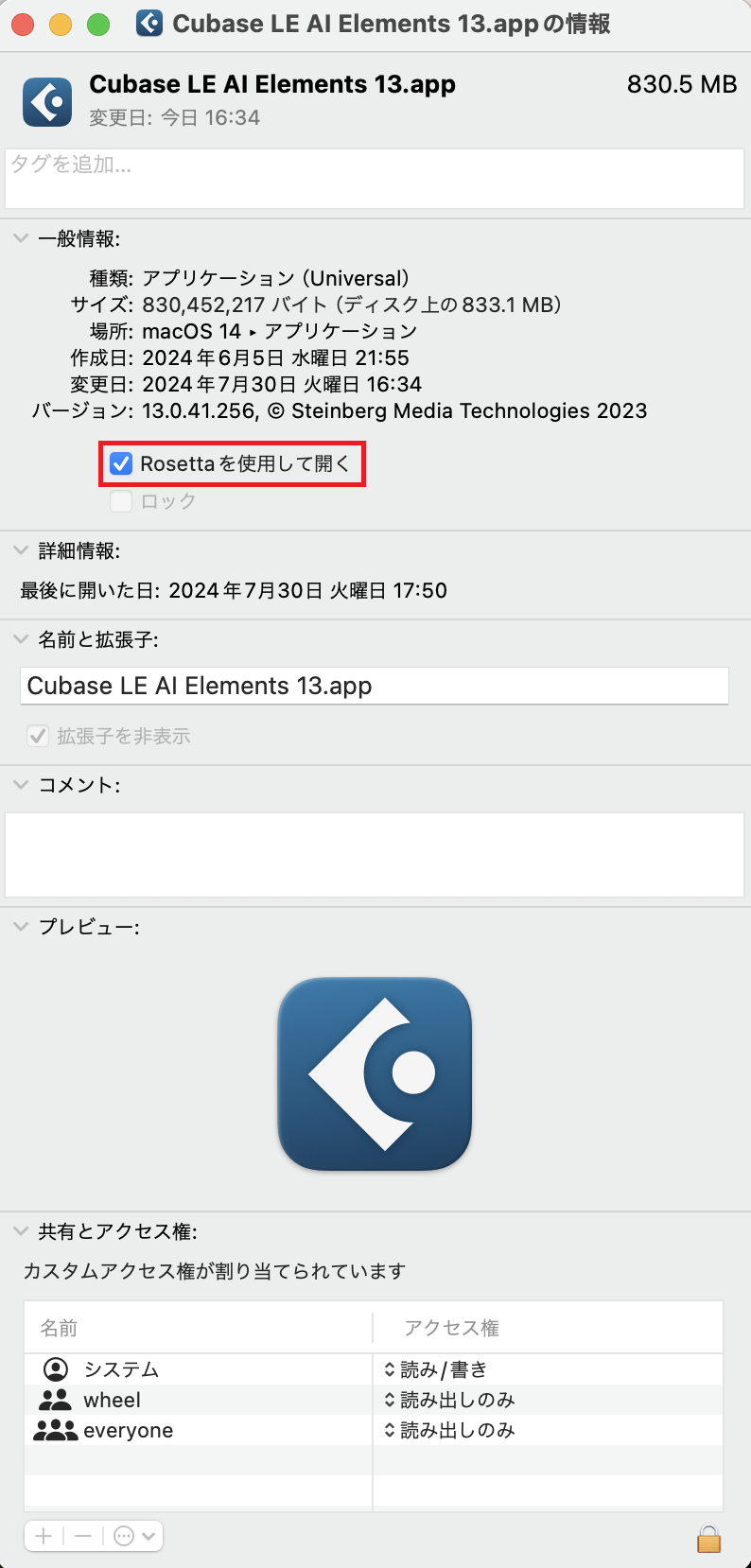
2. Check the "Open using Rosetta" checkbox.
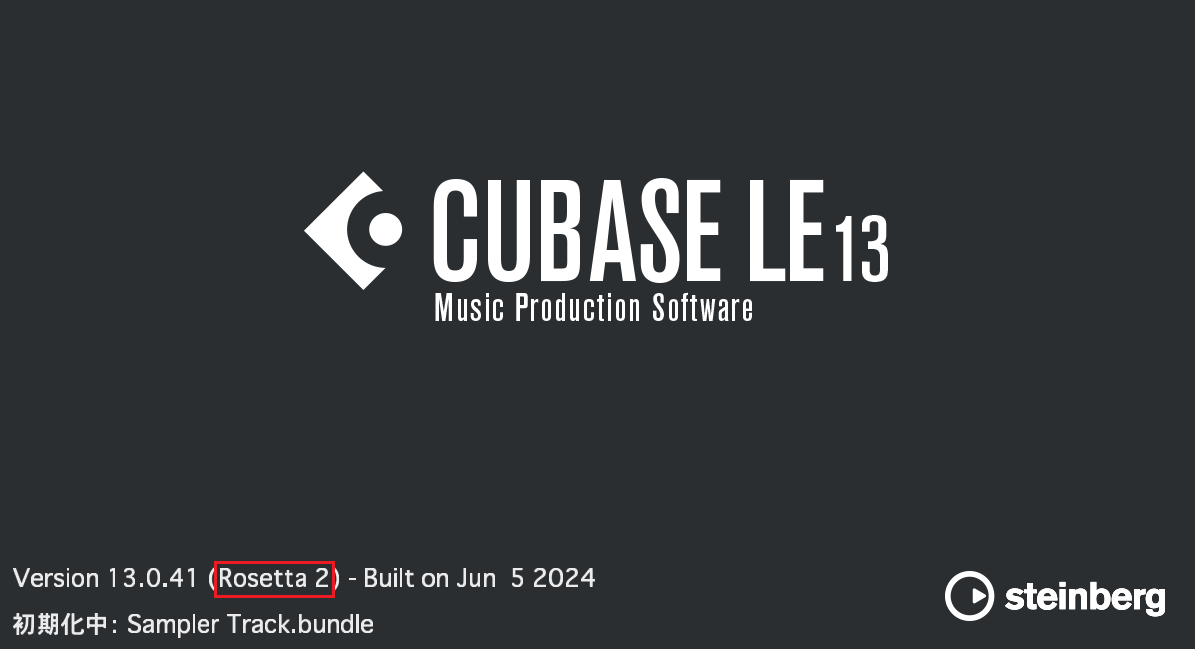
3. If "Rosetta 2" is displayed when you start Cubase, the settings are done.
|
2. Set up Audio Devices (Studio One)
|
This procedure is for those who have “Cubase LE” bundled with a Virtual Singer product. If “Studio One Artist” was bundled with your product, please check this page. |
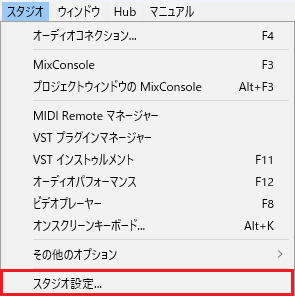
From the top menu of Cubase, click on “Studio” and then “Studio Setup...”.
Select “Audio System” and click on the menu to the right of “ASIO Driver” (see below) to see a list of audio drivers compatible with Cubase. Select the device (e.g., audio interface) from which you want to hear sound when creating a song. If you do not have an audio device, you can select “Generic Low Latency ASIO Driver” for Windows or “Built-in Audio” for Mac to output sound from the machine's built-in speakers or earphone jack.
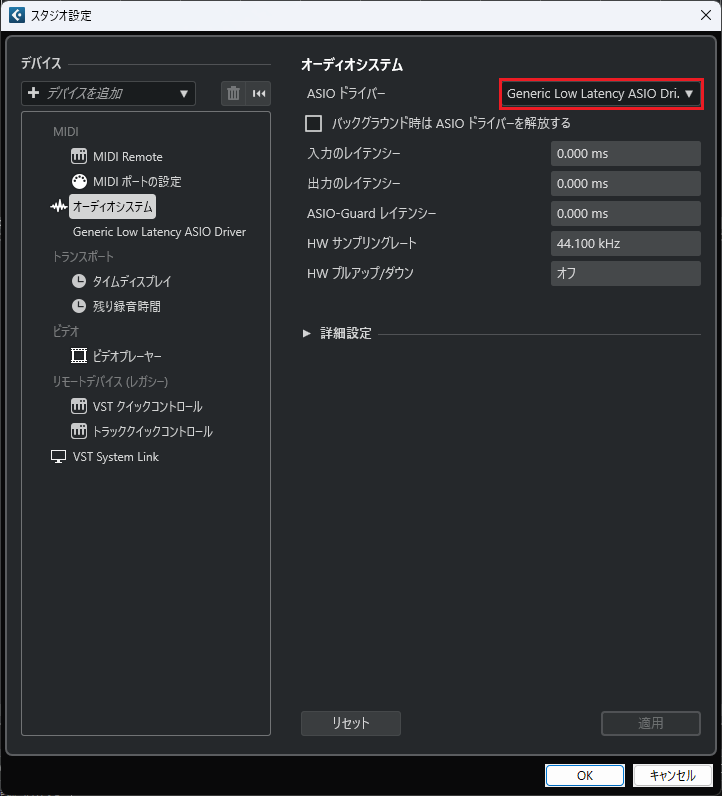
After selecting the device, click the “OK” button in the lower right corner of the screen to finish the configuration.
2. Set up Audio Devices
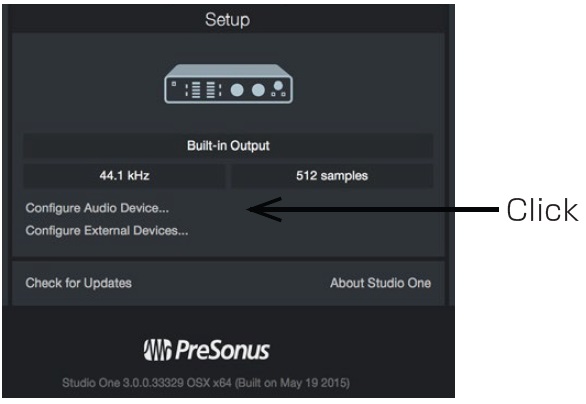
Click on "Configure Audio Device..." in the start menu.
If you have an audio device that supports Windows ASIO or Mac Core Audio, please choose the audio device you have from the pull down menu.
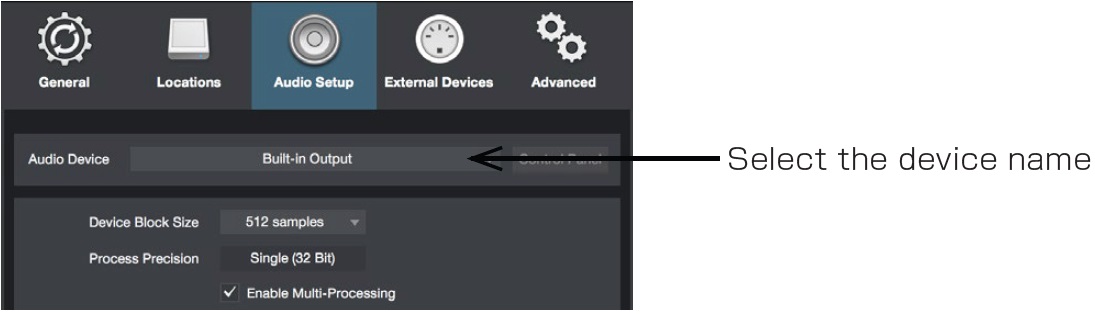
If you do not have an audio device, you may want to select Windows Audio for Windows, or Built-in Output for Mac. Sound output will come from the monitor speakers or headphones.
Click [OK] after selecting the device.
3. Create New Project
|
This procedure is for those who have “Cubase LE” bundled with a Virtual Singer product. If “Studio One Artist” was bundled with your product, please check this page. |
When “Cubase” is launched, the following screen will appear. If this screen does not appear, click “File” -> “New Project...” from the top menu of “Cubase”.
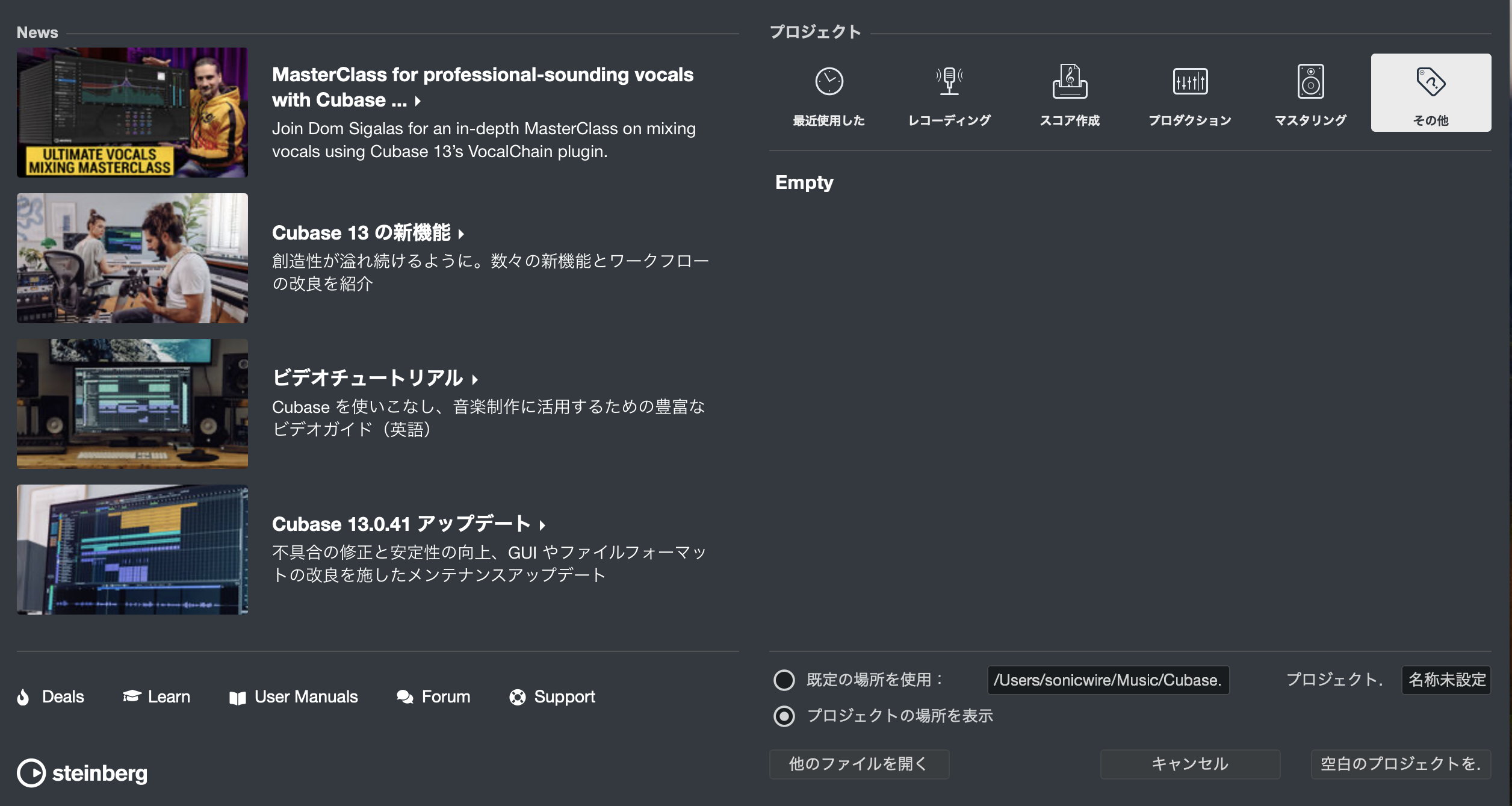
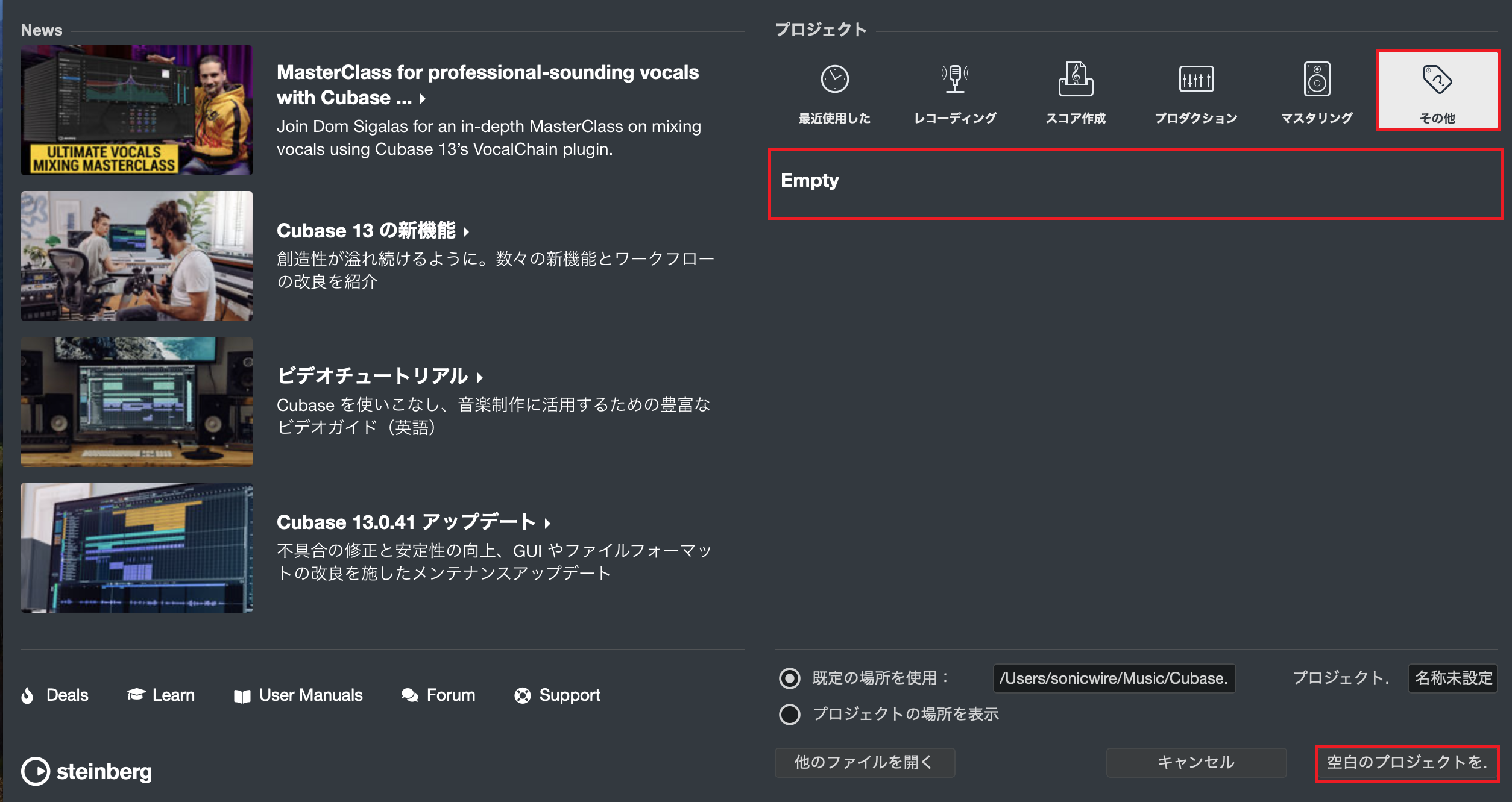
Under “Projects” on the right, double-click on “Empty” in the “More” tab or click on the [Create Empty...] button below to create a new project (a working file for music production). Check the “Use default location:” checkbox to specify where the new project folder will be created. To the right of that, “Project Folder:” allows you to set the name of the project folder to be created.
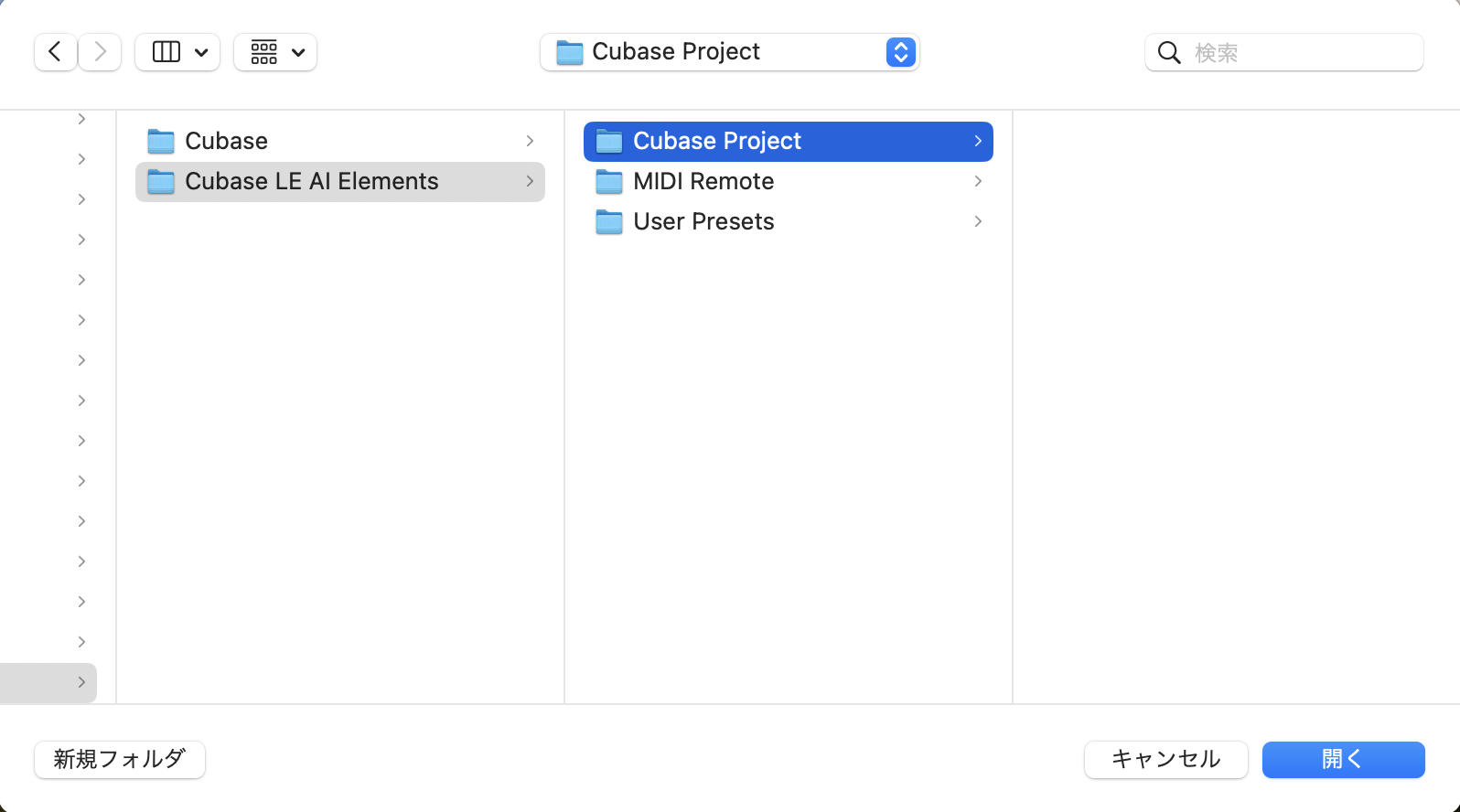
Only when you double-click on “Empty” with “Show Project Location” selected or click on the [Create Empty...] button, the following dialog box will appear. Specify the location where you want to create the project folder.
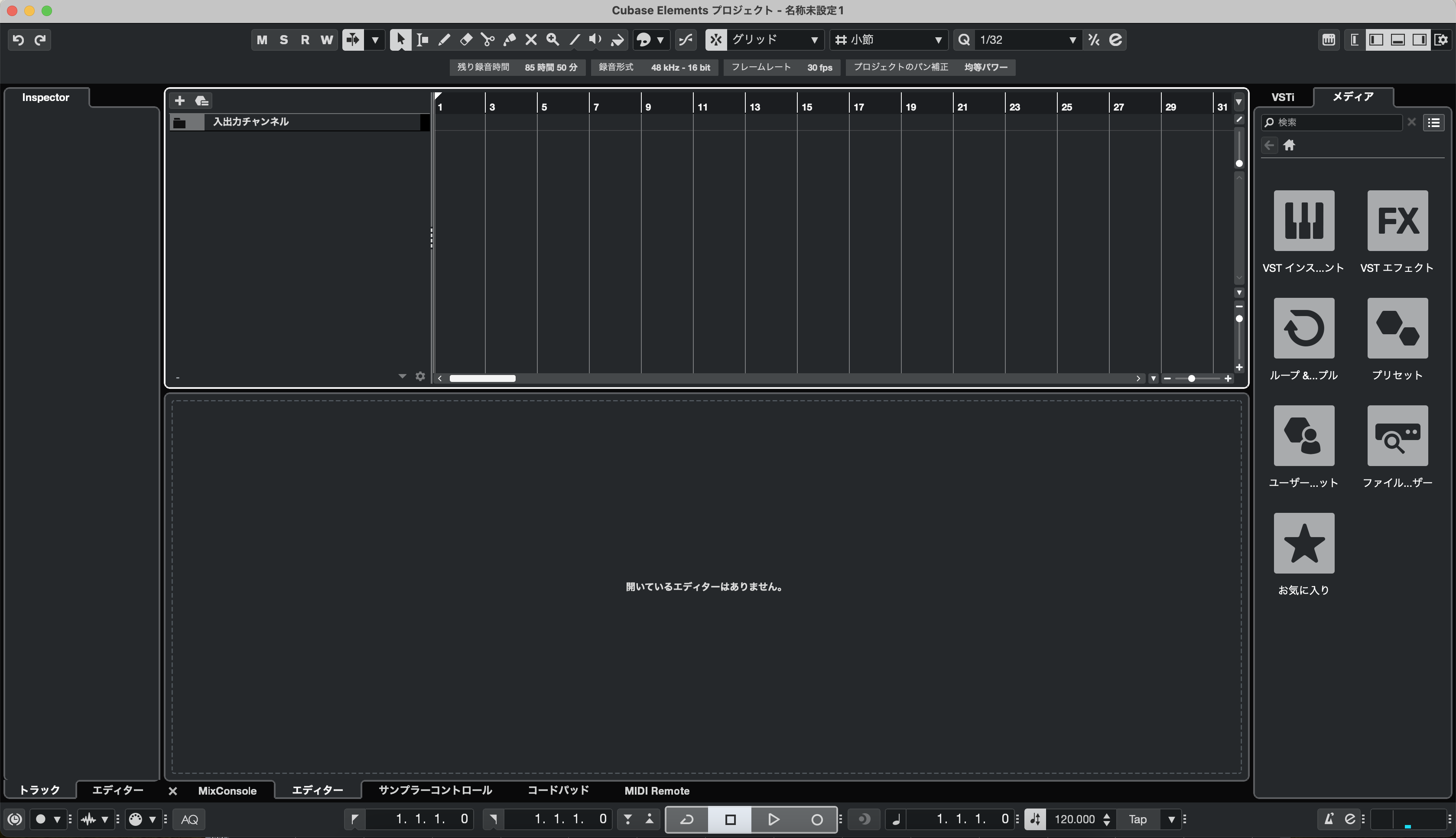
When the following screen appears, the creation of a new project is complete.
4. Start Piapro Studio
|
This procedure is for those who have “Cubase LE” bundled with a Virtual Singer product. If “Studio One Artist” was bundled with your product, please check this page. |
* If you are using a Mac with an Apple Silicon and have not yet set up “Open using Rosetta”, please refer to “For Mac users with an Apple Silicon” first in "1. Start Cubase".
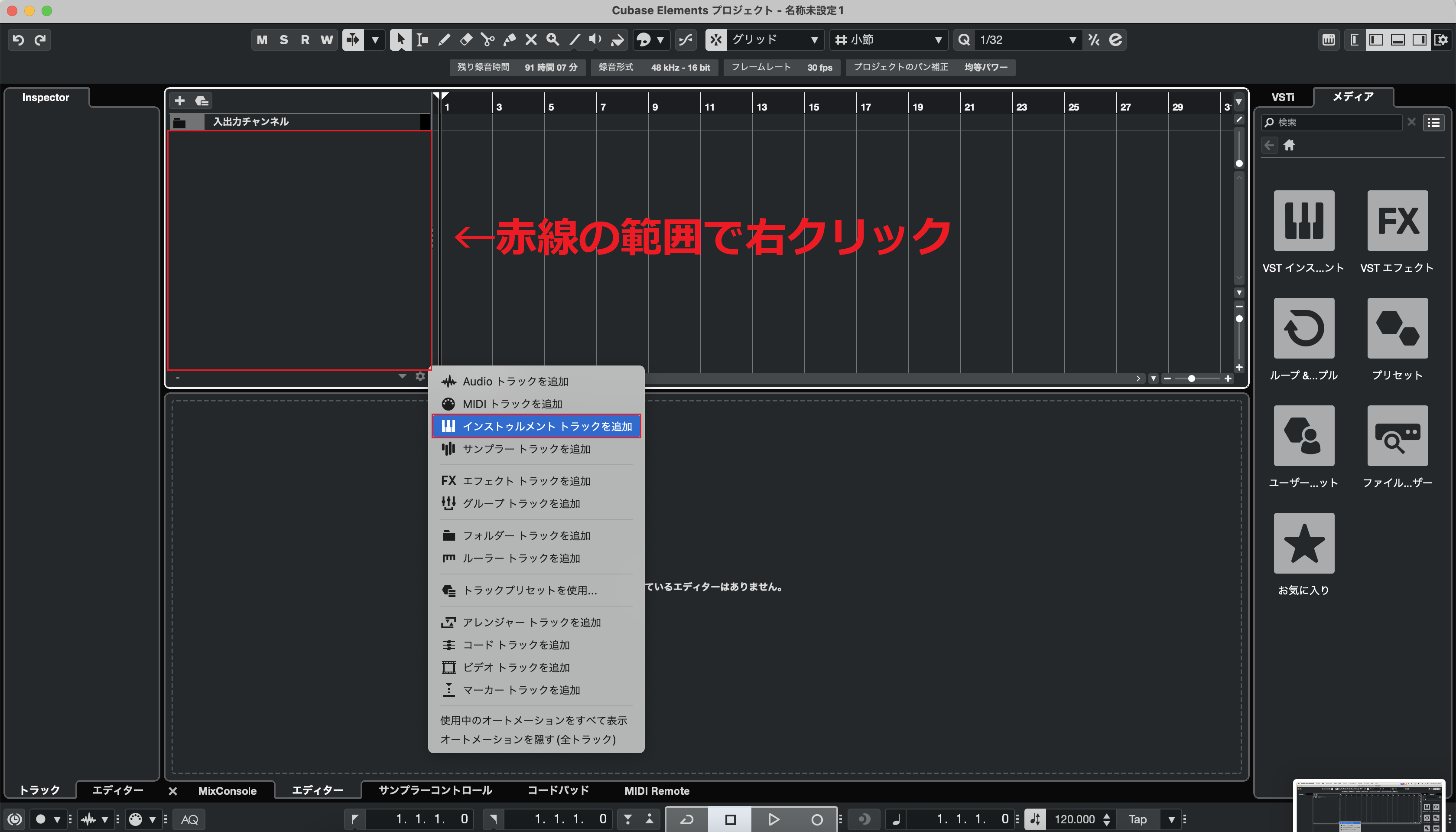
After the new project creation is complete, the following screen will appear. Right-click on the bottom of the track labeled “Input/Output Channels” and click “Add Instrument Track".
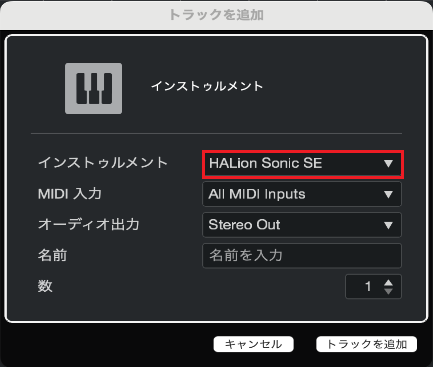
When the following image appears, click on the menu to the right of the instrument.
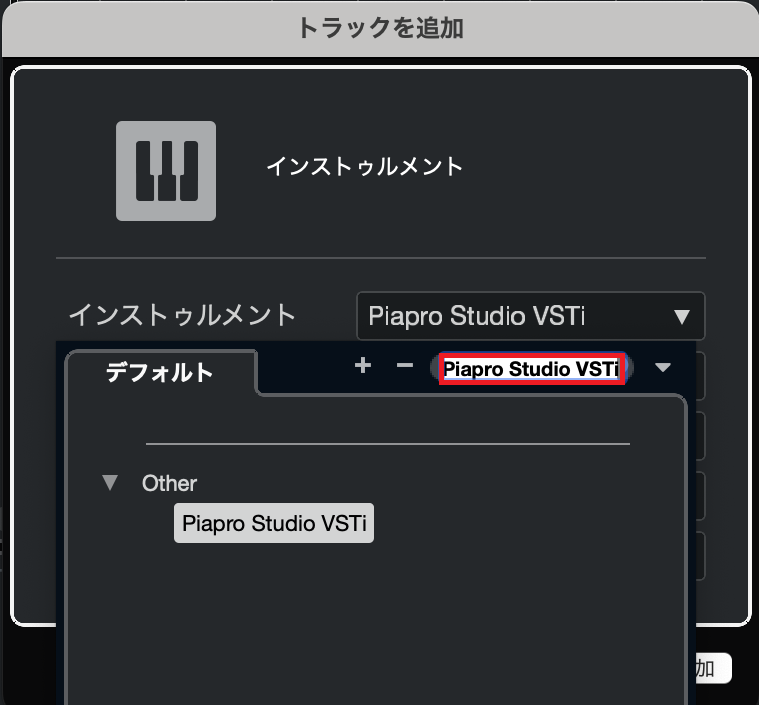
A list of installed instruments will appear. Find and select “Piapro Studio NT” from this list. You can search for an instrument in the text box in the upper right corner.
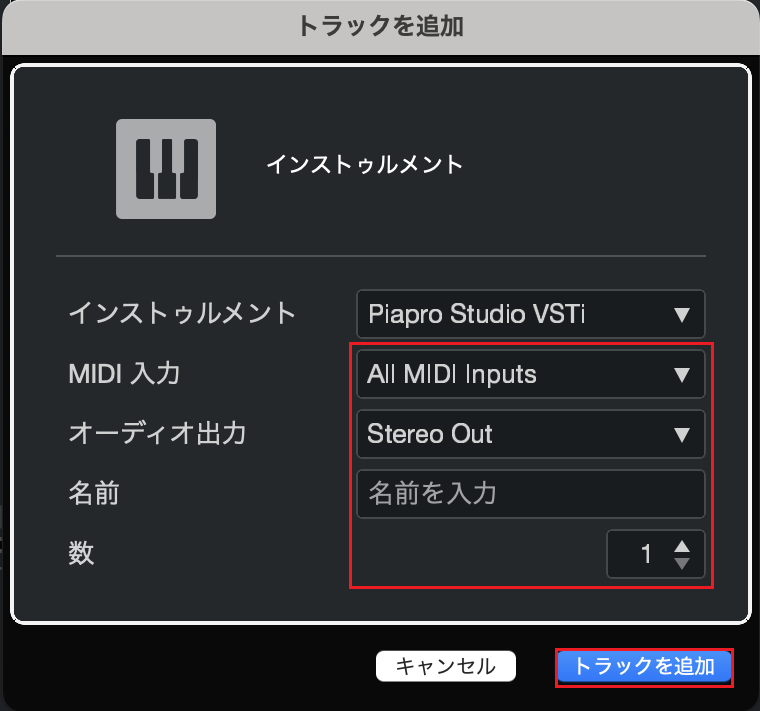
Under “MIDI Inputs", select the MIDI controller (e.g., MIDI keyboard) you are using; if you do not have a MIDI controller, select “All MIDI Inputs. For “Audio Outputs”, select “Stereo Out". In “Name,” you can set any track name you wish (you can also create a track leaving it blank). Finally, in “Count” select “1” and click the “Add Track” button.
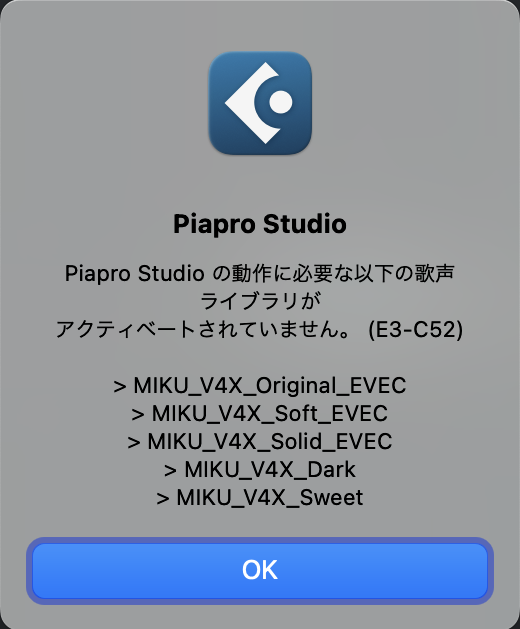
If the following message (an E3-C52 error) appears when starting the instrument, open an authorisation application (Win: ‘Activate4’ or ‘VOCALOID Authorizer’ Mac: ‘VOCALOID License Manager’ or ‘VOCALOID Authorizer") and activate the singing voice library.
When the “Piapro Studio Editor Window” appears as shown below, you are ready to go.
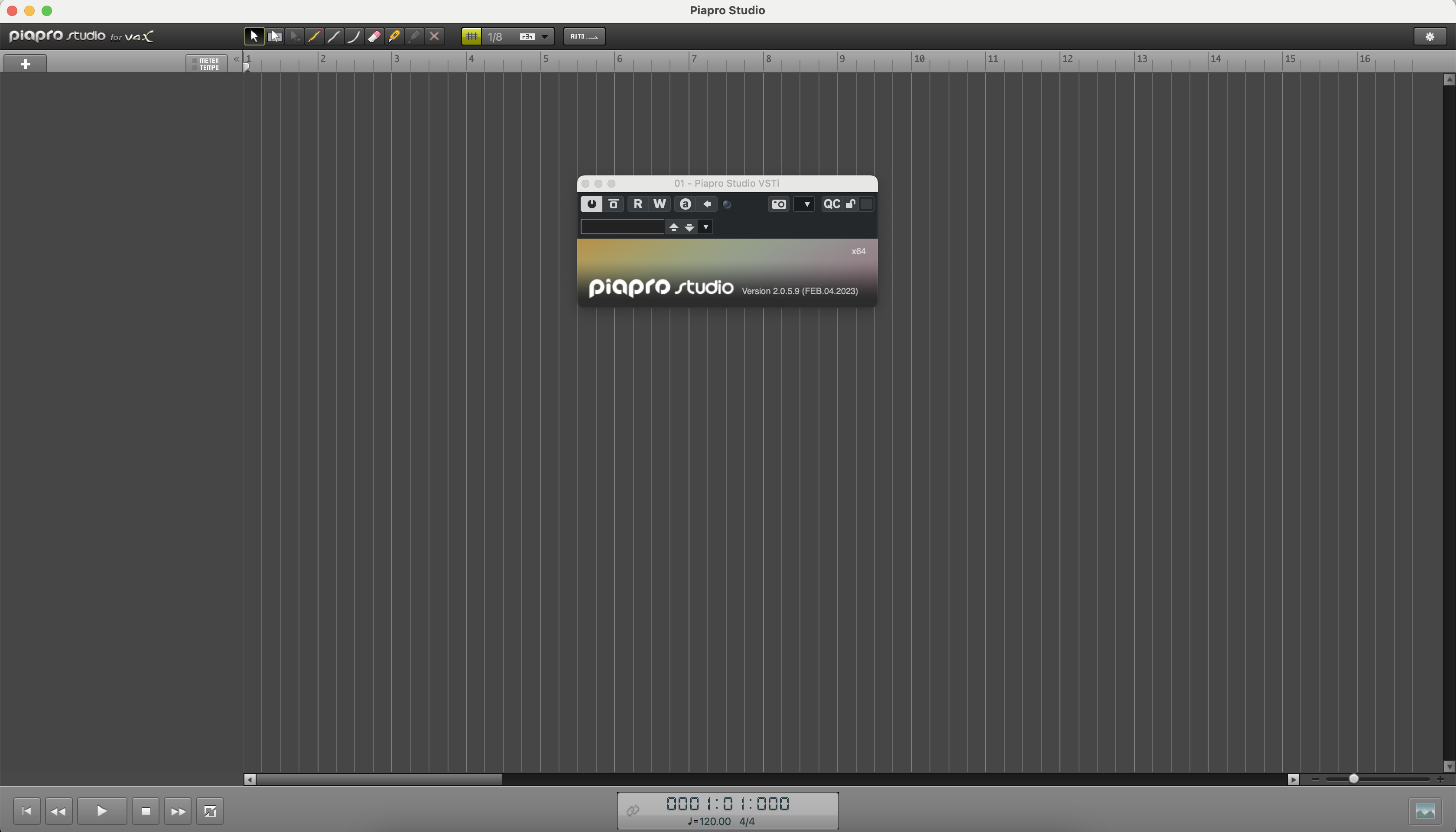
Piapro Studio Plug-in Window
This VSTi / AU Plug-in will open Piapro Studio Editor Window. You can start Piapro Studio Editor Window by clicking on this window. Note that you can only open one instance of this Plug-in in a project.
Piapro Studio Editor Window
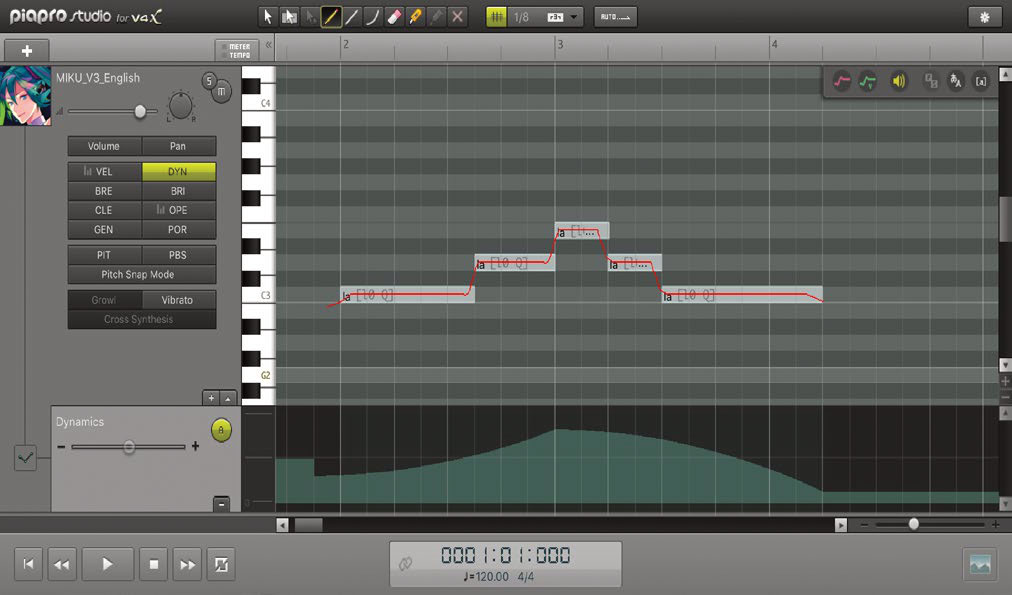
This is the window where you can create a vocal part using KAITO V3 / HATSUNE MIKU V3 voice library.
Menu
Windows:

Mac:

You can select/use many functions from here. Please refer to the chapter "Menu" for more details.
Tool Bar

You can select several tools from here. Please refer to the chapter "Tool bar" for more details.
Bar Line

You can check the number of bars, loop area, destination of pasting notes here. The bar numbers are the same as those of the Host Application. Please refer to the chapter "Bar Line" for more details.
Meter Track and Tempo Track

Displays the Meter and Tempo that are saved in a file (Piapro Studio Song File, VSQ, VSQX, MIDI) when loaded into Piapro Studio. Please refer to the chapter "Meter / Tempo Track" for more details.
Track

You can write notes, lyrics, and set the performance control in this area. Please refer to the chapter "Track" for more details.
Scroll Bar

You can scroll the screen to the left and right using this scroll bar. The horizontal bar shown in the right allows you to zoom in/out the screen.
Transport Bar

You can control the playback using this bar. Please refer to the chapter "Transport Bar" for more details.
About Pitch & Note Length
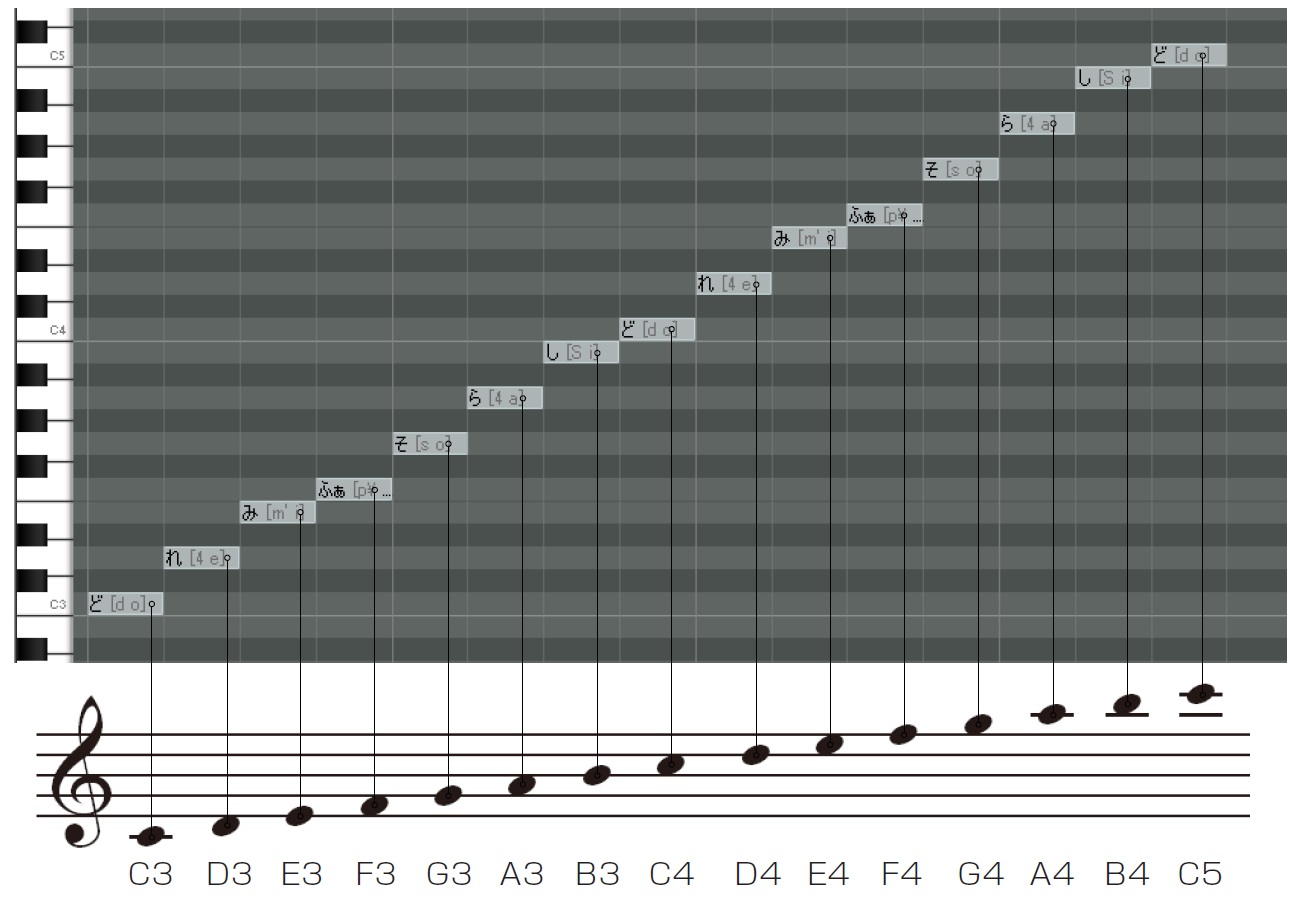
In the Piapro Studio piano roll screen, the vertical grid displays the pitch (interval) in the higher grid position which is the higher pitch and vice versa. The horizontal grid displays the timing and length of each note. The song is played back from left to right. The horizontal bars written in the grid are actually notes.
Pitch
The picture below displays how notes are written in Piapro Studio screen. Piapro Studio can of course play higher/lower pitch notes which are not shown in this screen shot.
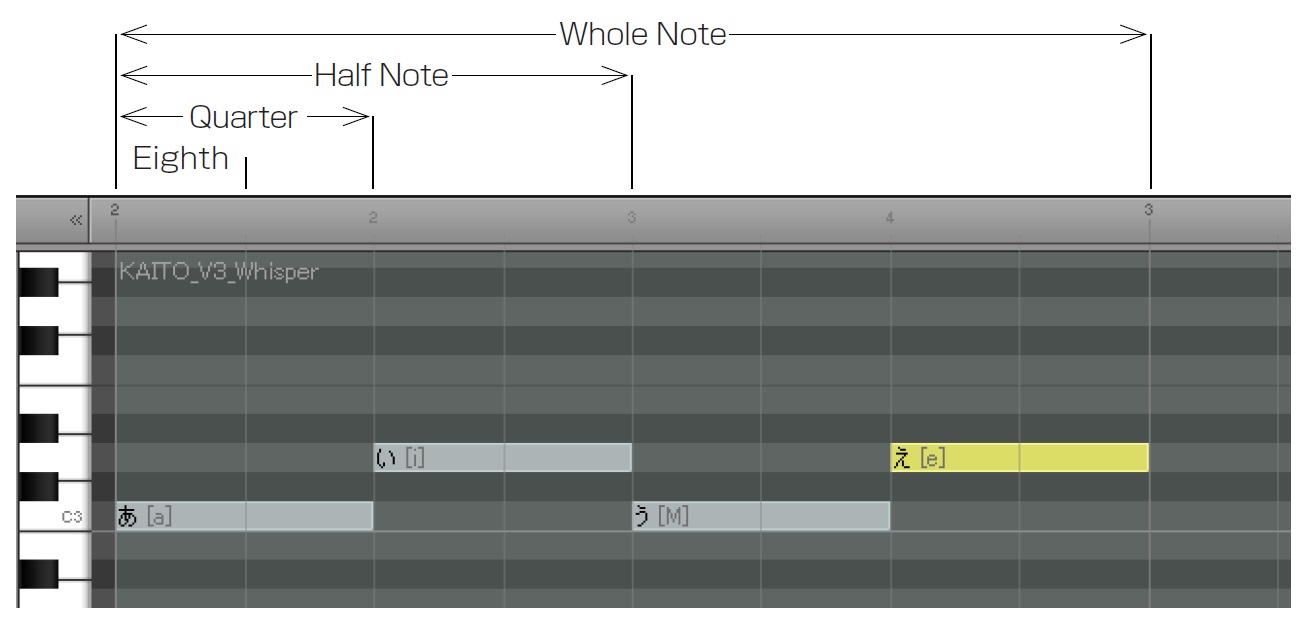
Note Length
1 common bar contains 4 quarter notes.
Compose a Vocal Song with Piapro Studio
Now you have set up the Host Application and Piapro Studio. Let's start composing a Vocal Song.
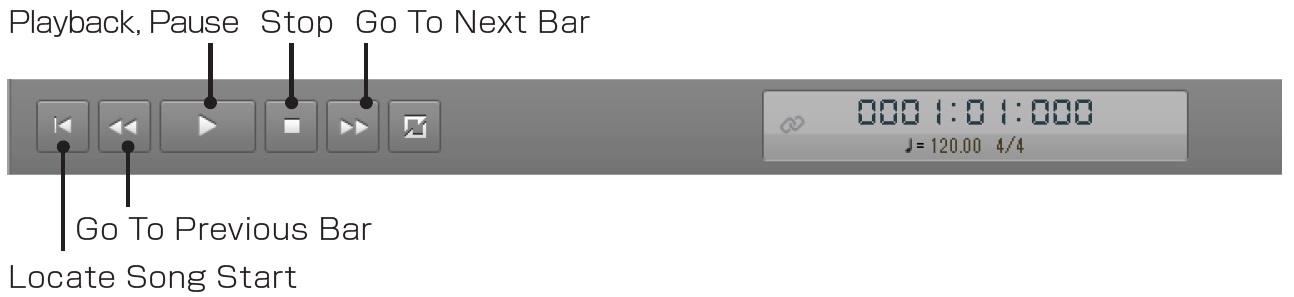
Playback
With the "Transport Bar" at the bottom of the Piapro Studio screen, you can play back your song. You can listen to the melody and lyrics you entered by pressing this button.
1. Setting the Tempo and Time Signature
Tempo and Time is managed by the Host Application. In the case of "Studio One Artist Piapro Edition", you can set the Tempo and Time at the bottom of the window as shown below.

After you set the Tempo and Time, just click the play button on the Host Application. Your settings will be automatically sent to Piapro Studio. These settings are displayed on the Transport Bar as shown below.

2. Making a Track
After setting Tempo and Time, let's create a track in Piapro Studio.
3. Making a Region
After creating a track, you need to create a "Region" in the track where you can input notes and lyrics. Select the "Pen Tool" in the Tool Bar, click and drag to the right in a track.

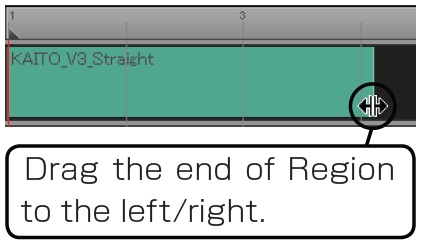
You can change the length of the Region by dragging (click&hold) the end of it to the left/right.
To move the entire Region, click on it and hold the button while dragging to the left/right.
You can delete the Region by hitting the Delete/Backspace key after selecting it.
4. Inputting Notes
Let's input notes into a Region.
Notes can be inputted in the Piano Roll Editor that appears when you double-click on the Region. Select "Pen Tool" and click&drag in the piano roll. You can draw the note as a bar and release the mouse when you are done.
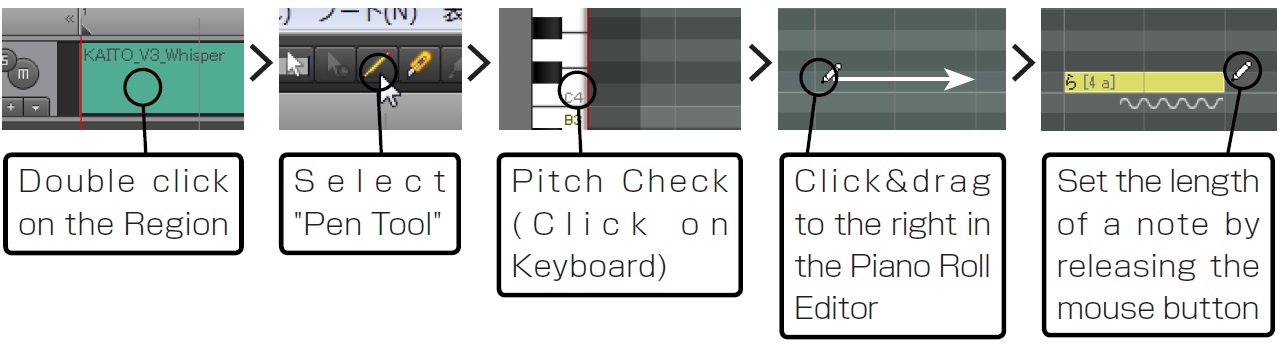
Select a Note
Select a note by clicking on it with the "Select Tool" or "Pen Tool". The color will turn yellow when selected. Hold down the Ctrl(Win) / Command(Mac) Key to select several notes. This is very useful when moving/deleting several notes simultaneously.
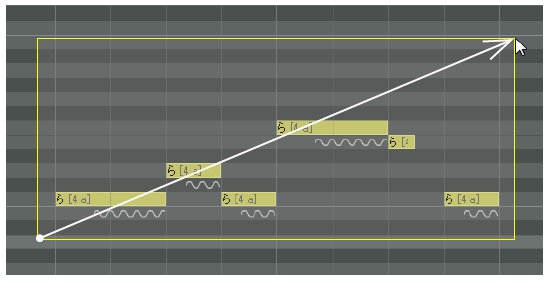
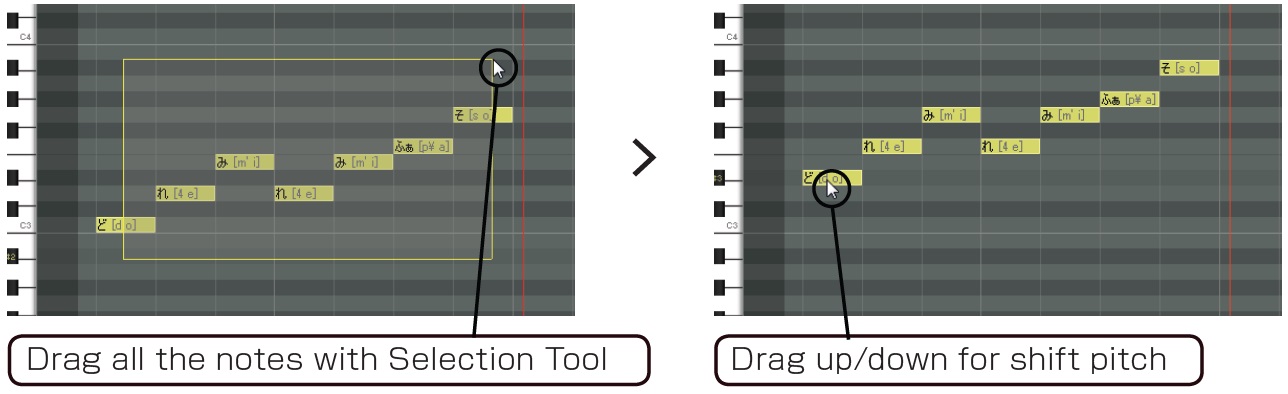
By clicking&dragging on the editor screen using the Select Tool as shown on the left, all notes in the area will be selected.
Change Note Length
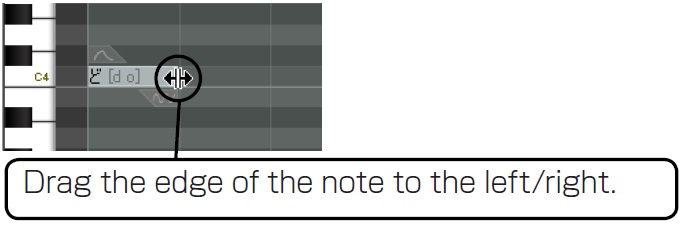
You can adjust the length of each note by dragging the edge of the note.
Moving and copying Notes
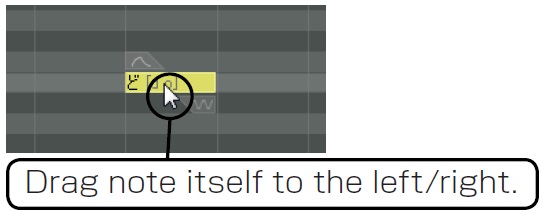
You can drag a note itself to left/right by selecting and dragging it. You can also copy it by holding down the Ctrl (Win) / Option(Mac) Key and draging the note to the left/right.
Deleting a Note
You can delete a note by selecting it and hitting Delete key or Backspace key.
Input triplet
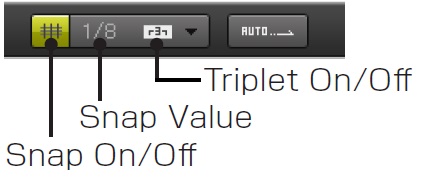
Depending on the song, you may need to input triplets. In such a case, please turn on "Snap On/ Off" Button and "Triplet Notes" button (highlighted in yellow) as shown left. You can set the length of each note with Snap Value.
Pre-send Area
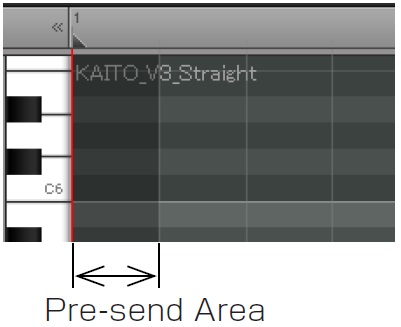
In most of the cases, you may feel that the sound of the vocals are a little bit earlier than the actual time or tempo, e.g. when inputting [s] sound. Therefore there is the Pre-send Area at the head of the first bar. Please do not create notes in this black area.
5. Inputting Lyrics
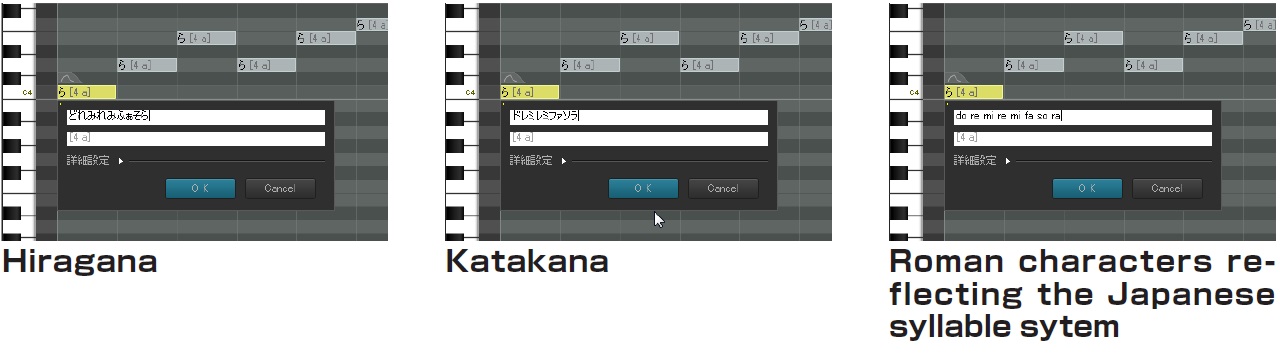
After inputting notes, let's input lyrics. Double click on the first note of the melody, then the "Lyrics Palette" will pop-up (as shown below).
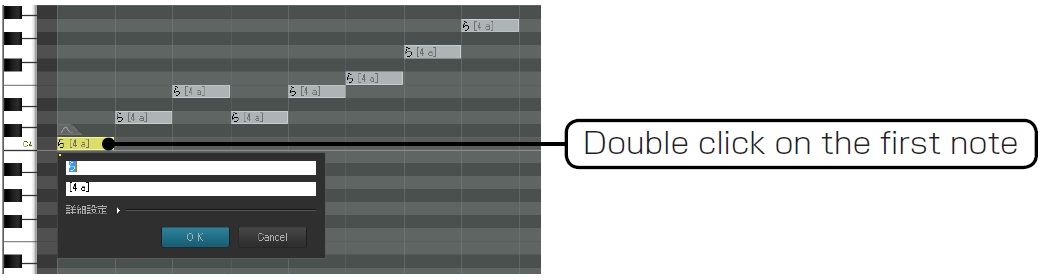
In the Japanese Voice DB, you can input lyrics using Japanese Characters Hiragana, Zenkaku Katakana, and 2 sequential Roman characters. You cannot type in Kanji, numbers, or the alphabet other than the system described above. Please change it to Hiragana or Zenkaku Katakana.
In the English Database, you can only input English words. Numbers, special characters and Japanese characters cannot be pronounced. Please use only the alphabet.
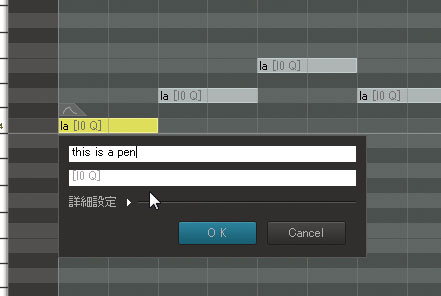
After typing in all lyrics, click the OK button.
6. Making a Chorus Track
After you have create the Vocal Track, you can create a chorus (harmony). You can just duplicate the Vocal Track to easily create such a Chorus Track. Right click on the track, then select "Duplicate Track" from the drop down menu as shown below.
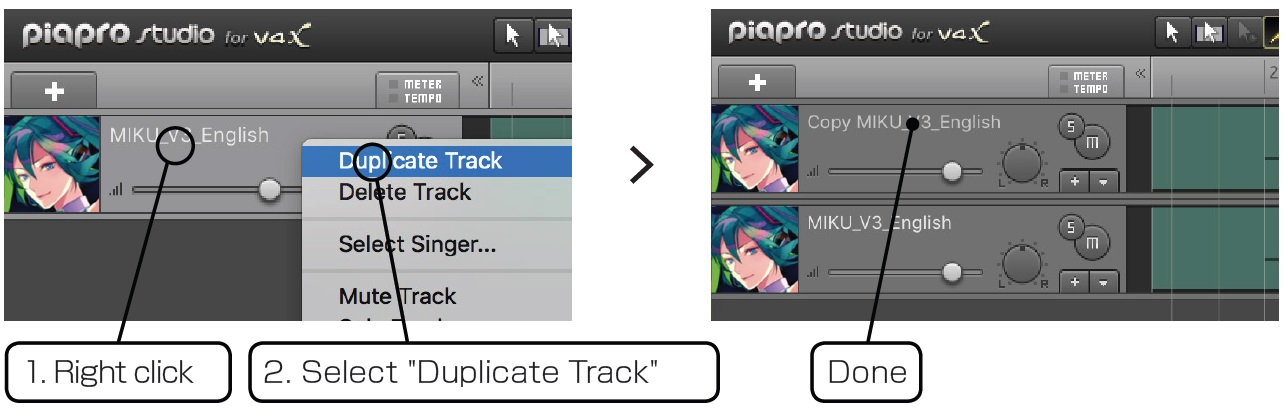
The duplicated track includes all information of the original track, such as the Region. When the track has been added, double click on the Region and open the Piano Roll Editor. Select all the notes and shift it up/down for changing the pitch. This is an easy way to create a chorus.
7. Volume Balance
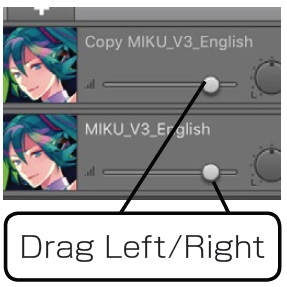
You can make the chorus sound more natural by reducing the volume of its track. Each track has a "Volume Fader" and you can adjust the volume by dragging its fader to the left or right.
Using the Automation Track
Modify the texture of each sound by using the Automation Track
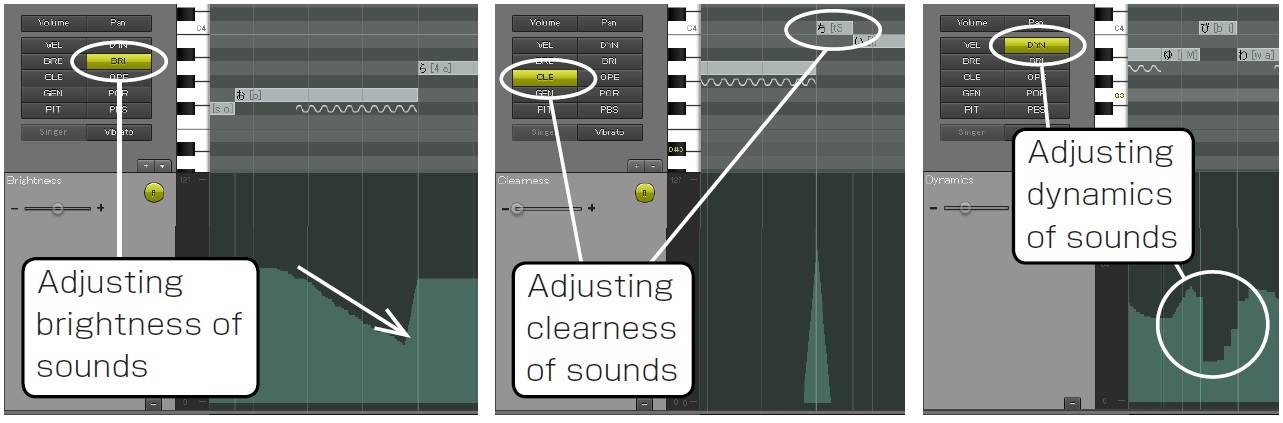
If the consonant stands out too much, or you can hear a harsh noise after the release (end of a sound), decrease the Brightness (BRI) along with time sequence so that it has a softer and smoother sound. If the vocals are not clear enough, increase the Clearness (CLE) at the Attack of the voice. It will make the sound and pronunciation sharper. If you need to fine tune the volume, use Dynamics (DYN). When you input/adjust the parameter for the automation, note that you should draw a curve that will change the parameters smoothly.
Use Dynamics (DYN) for creating movement of the phrase and melody.
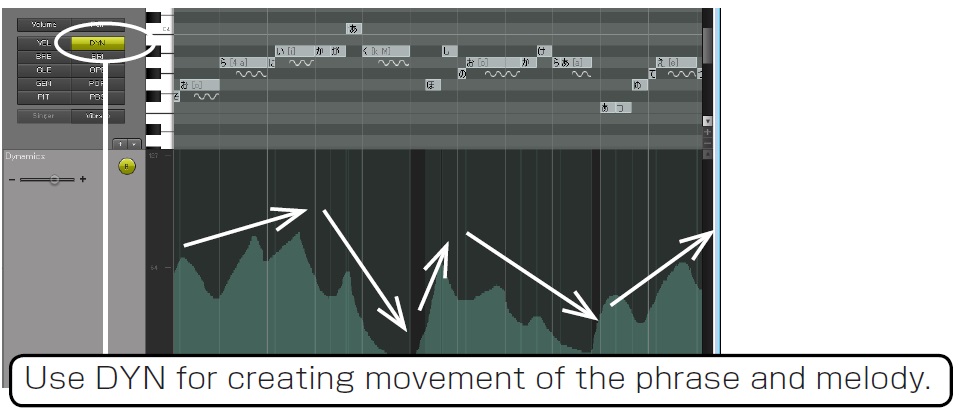
Not only each note's volume, but also intonation of the phrase at the crescendo can be controlled by the Dynamics (DYN) control. Dynamics can control intonation over several notes and the total phrasing dynamics.
"Exhaling" and "Attack of the voice" can be performed by the Brightness (BRI) parameter
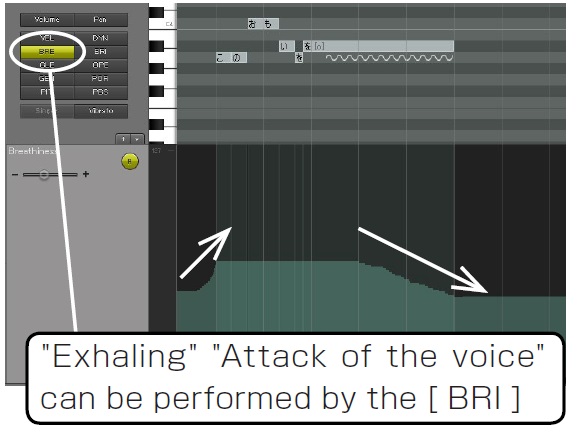
Brightness (BRI) controls the clearness of the sound. For example, you can utilize this parameter to per form "exhaling " voice performance by changing it from approximately 64 to 35 at the end of the phrase little by little. Also, a slowly starting phrase can be per formed by increasing Brightness from 35 to 64 little by little. To make it smooth, you should increase the Brightness around the first half of a note and decrease around the end of a note.
When the consonant is too harsh / too soft use "Velocity Control"
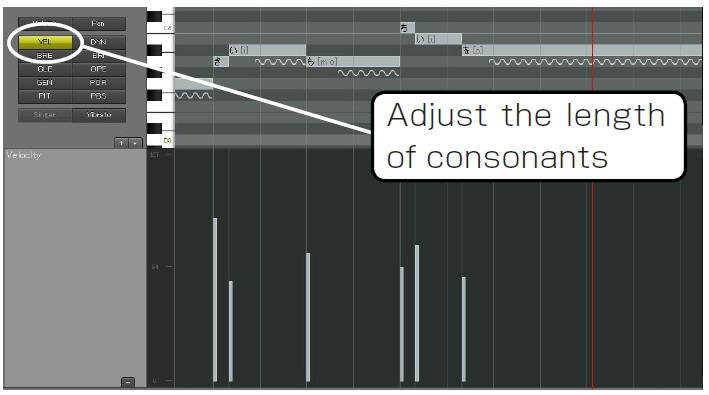
If sounds are too sharp or noisy, unclear or dull, modify the Velocity Control. However, please note that fricative sounds that start with "Sa" or "Ha" tend to be more emphasized by a decreasing velocity. That is because the consonant becomes longer and is therefore heard more easily when the velocity is decreased.
On the other hand, the consonants of plosive sounds like "Pa" or "Ba", tend to shorten by increasing velocity, which will sound dull or plain.
Control the performance for each note
Singing Style
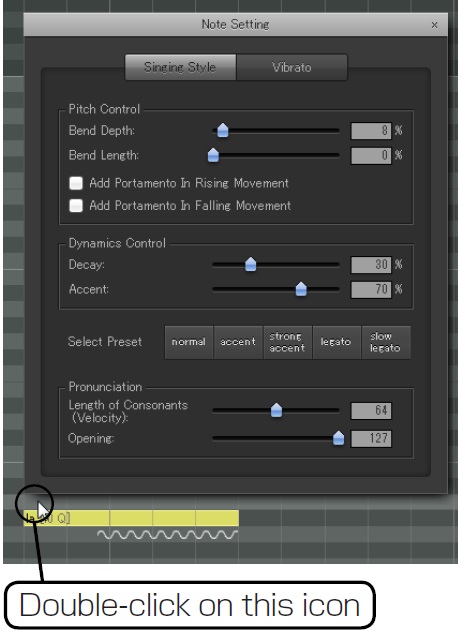
You can control the intonation of each note by setting the "Decay" and "Accent" in the "Singing Style" window as shown left. You can pop-up the Singing Style window by double clicking the icon that is shown on the top left side of each note.
Decay is the parameter that sets how sound goes gradually silent when the note is kept longer. By decreasing this parameter, you can keep the sound not being attenuated. By increasing this parameter, you can make the sound attenuate quickly. The Accent is the parameter that changes the nuance on the attack of the sound. Increasing Accent emphasizes the attack, decreasing makes it soft and gentle.
Note that changing Accent also changes the volume of the note. You may need to review the total dynamics or volume parameters after you altered the Accent.
For example, if you want to connect 2 notes smoothly, you should increase the Decay of the first note, and then decrease the Accent of the second note. Vice versa, decreasing the Decay of the first note and increasing the Accent of the second note makes the voice staccato and articulate.
Isolating a Note
When you find notes whose pitch or pronunciation sounds incorrect, try to cut and shorten the notes so that they are isolated from the phrase. By making a staccato voice in that way, the later note could be pronounced clearly and the pitch might be corrected.
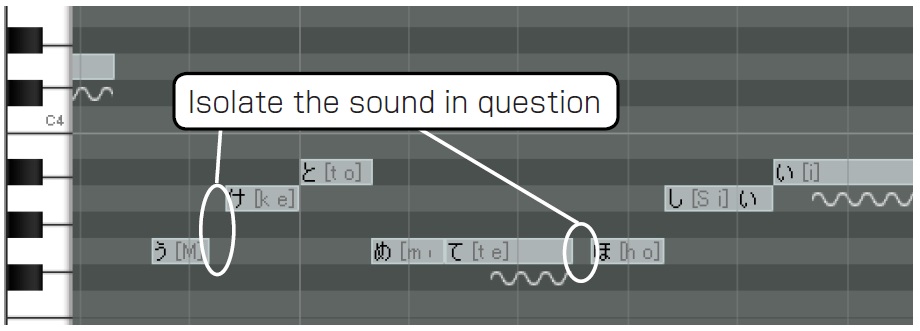
※ Depending on the situation, isolating a note could cause other issues such as making the later note sound harsh. You will find the right way by getting used to this feature.
Dividing Notes (Divide on vowel)
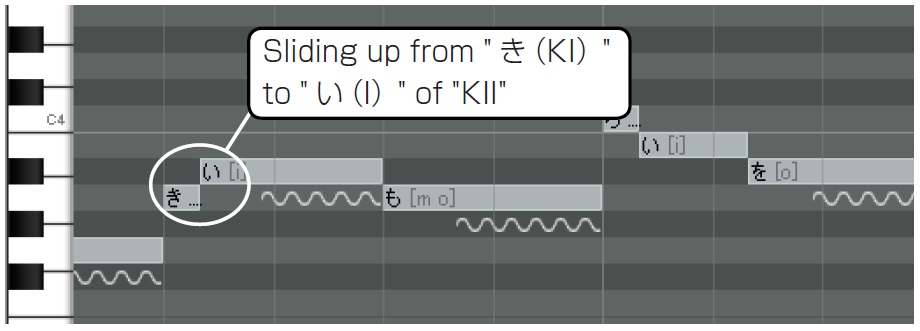
If you find a note sounding unclear, or the pronunciation sounds incorrect, just divide the note on the position of the vowel. For example, the sound "Ka" (K + a) can be divided into "K" and "A" phonemes. This can "sound" as one word, but actually when the nuance of the vowel or consonant and the flow of the sound are changed, it will reflect the pronunciation of the word. If the original note is relatively long, e.g. a quarter note or an eighth note, you can change each length after dividing them. Please note that dividing a note into smaller pieces can make the phrase more attractive. But sometimes it also makes its pronunciation sound incorrect. Please be careful.
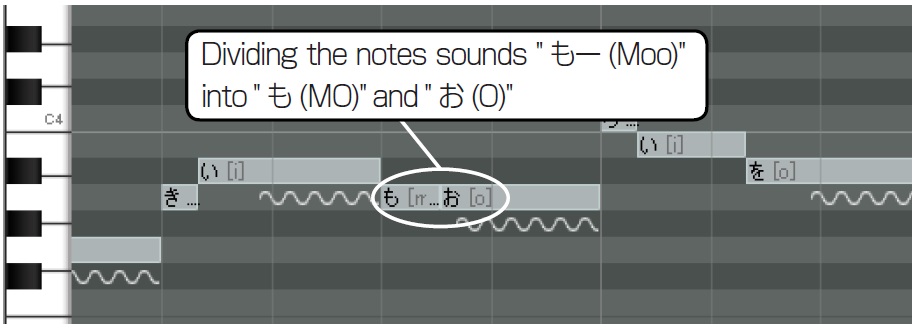
A typical performance technique for a singer is to start singing from a little bit lower pitch and then sliding up to the correct pitch, or to slide down to the next note with a legato, which makes the song more expressive and passionate. You can replicate this performance by the [Divide on vowel] technique in Piapro Studio. This means, if you make the first note of the divided phrase a whole step or half step lower, then you can replicate the sliding up effect. If you make the second note (vowel) of the divided phrase higher, you can perform the legato technique.
Add Vibrato
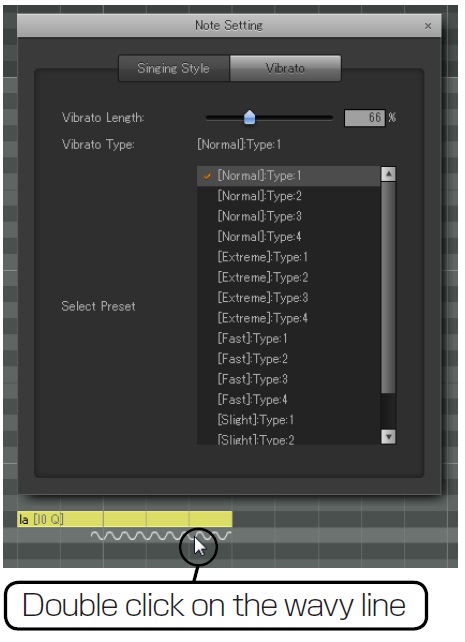
When a note is inputted by default setting, a vibrato is automatically set as a default value (66% of the length of a note). But when the long note is shortened or a short note is adjusted for a long tone, the setting range of a vibrato may change and it may become unnatural.
Let's keep in mind that an impression changes a lot by the existence of a vibrato in the long tone (long note) especially.
Moreover, especially when "note division" is carried out, caution is required for the setup of a vibrato.
About Tuning - A Small Pronunciation Guide
At times, you will want to be able to modify the pronunciation of words sung, into a tuning you desire or prefer. At other times, you will encounter so called homographs. Homographs are words that are written the same, but have a different pronunciation. For example:
- record (vinyl) vs. record (to record)
- tear (when crying) vs. tear (to tear)
- live (e.g. live band) vs. live (to live)
These are only a few examples, but you will encounter more words like these. It is yet impossible for VOCALOID technology to distinguish between these words, since they are inputted just the same way and therefore this decision can only be done through human intelligence.
This short column will show you how you can tune Miku's voice and pronunciation into the style you desire or prefer.
How to change Miku's pronunciation
There are two fields when inputting lyrics in Piapro Studio (see image below).
The upper one is where you can just type in the lyrics you want Miku to sing. The lower part is the equivalent to your lyrics in phonetic VOCALOID symbols.
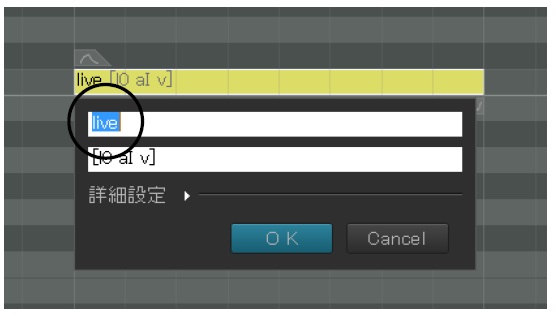
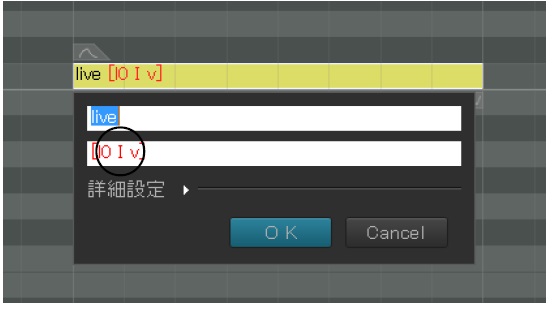
When you wish to change a pronunciation of a word, you click into the phonetic symbol field and change the according phonetic symbol. It will change then to a red color, indicating that you made a change.
List of VOCALOID Phonetic Symbols
The list on the next page contains the VOCALOID phonetic symbols, with which you can modify each pronunciation by just replacing the original phonetic symbol. The VOCALOID phonetic symbol (on the left-hand side) is equivalent to the parts in bold of the sample words (middle), and to the phonetic symbols that are often used in dictionaries (right-hand side).
Be careful!
Through the original connectivity of vowels with consonants, there might sometimes occur the case that pronunciations are distorted when you change them. This technique needs some practicing time, but when mastered it is a very powerful tool.
Find tutorials and more information on piaprostudio.com/
| VOCALOID Phonetic Symbol |
Usage Example | Phonetic Symbol (Vowels) |
| [ V ] | cut study success famous | [ ʌ ] [ ə ] |
| [ { ] | pat cat bag | [ æ ] |
| [ Q ] | lot dog soft | [ ɔ ] |
| [ i: ] | see eat speak | [ iː ] |
| [ I ] | city picture | [ i ] |
| [ u: ] | boot two school | [ uː ] |
| [ U ] | put book | [ u ] |
| [ e ] | end red | [ e ] |
| [ O: ] | auto ball wall | [ ɔː ] |
| [ Q@ ] | arm heart | [ ɑː ] |
| [ @r ] | girl work | [ əːr ] |
| [ aI ] | fly like | [ ai ] |
| [ aU ] | out cow sound | [ au ] |
| [ I@ ] | ear here dear | [ iə ] |
| [ U@ ] | poor sure | [ uə ] |
| [ eI ] | day eight rain | [ ei ] |
| [ e@ ] | air chair careful | [ eə ] |
| [ OI ] | oil voice | [ ɔi ] |
| [ O@ ] | door more for | [ ɔːr ] |
| [ @U ] | slow old toast | [ ou ] |
| VOCALOID Phonetic Symbol |
Usage Example | Phonetic Symbol (Vowels) |
| [ ph ] [ p ] | park help | [ p ] |
| [ bh ] [ b ] | baby job | [ b ] |
| [ th ] [ t ] | telephone hit | [ t ] |
| [ dh ] [ d ] | door old | [ d ] |
| [ kh ] [ k ] | coffee talk | [ k ] |
| [ gh ] [ g ] | girl pig | [ g ] |
| [ f ] | flower leaf | [ f ] |
| [ T ] | think tooth | [ θ ] |
| [ D ] | that with | [ ð ] |
| [ s ] | small ice | [ s ] |
| [ S ] | ship wash | [ ʃ ] |
| [ z ] | zoo as | [ z ] |
| [ tS ] | church teach | [ tʃ ] |
| [ dZ ] | Japan page | [ dʒ ] |
| [ h ] | hand behind | [ h ] |
| [ v ] | voice have | [ v ] |
| [ Z ] | usual treasure | [ ʒ ] |
| [ l0 ] [ l ] | letter ball | [ l ] |
| [ r ] | rocket carry | [ r ] |
| [ w ] | watch sweet | [ w ] |
| [ j ] | you beauty | [ j ] |
| [ m ] | member farm | [ m ] |
| [ n ] | nose lesson | [ n ] |
| [ N ] | English song | [ ŋ ] |
Application(Mac Only)

| About Piapro Studio | Shows a small screen describing the current version |
| Preferences | Displays the Preference Panel. |
File

New
Creates a New Song
Import
Piapro Studio Song File
Opens Piapro Studio Song File (.ppsf).
VOCALOID Sequence File
Open VSQX files saved in VOCALOID 4 Editor, VOCALOID3 Editor or Tiny VOCALOID3 Editor, and VSQ files saved in VOCALOID2 Editor.
MIDI File
Reads in MIDI Files (.mid) that were created using VOCALOID Editor, VOCALOID2 Editor or other DAW application.
MIDI Data which is readable in Piapro Studio
- MIDI File of VOCALOID Editor:
Except for parameters such as "Resonance" which is specific to VOCALOID Editor. - MIDI File of VOCALOID2 Editor:
All notes, lyrics and parameters are applied. - MIDI File of DAW application:
Note, Pitchbend and Pitchbend Sensitivity are applied.
* If you want to read in vocal parts which were composed with VOCALOID 2 Editor, it is recommended to import the VSQ file.
Meter/Tempo Data from File
Reads in only Tempo and Time Signature from VSQ File, VSQX File, and MIDI File.
Export
Piapro Studio Song File
Saves in Piapro Studio song file(.ppsf).
Audio File
Exports selected Region as WAV file.
VOCALOID3 Sequence File
Saves in VSQX files for VOCALOID3 Editor or Tiny VOCALOID3 Editor, VOCALOID for Cubase.
VOCALOID4 Sequence File
Saves in VSQX files for VOCALOID4 Editor or VOCALOID4 for Cubase
MIDI File
Exports song file as MIDI file. Exported MIDI information includes Note On/Off & Note Number, Pitch Change & Pitchbend Sensitivity, and Meter & Tempo. (As VOCALOID3 Velocity is different from other Virtual Instrument Software in use, it’s exported as fixed Velocity value=64.)
Meter/Tempo Data to MIDI File
Exports only Meter and Tempo from song file as MIDI.
Close Window
Closes Piapro Studio Editor window. You can re-open it by clicking on the Piapro Studio Plug-in window.
About saving data
When a project file is saved with a Host Application (DAW), the composed contents (vocal parts) of Piapro Studio will also be saved. If you just want to save the vocal parts, save them to a Piapro Studio Song File (.ppsf) or a VOCALOID sequence file (.vsqx).
Edit

Undo
Reverts the previous action
Redo
Reverts Undo
Cut
Cuts selected Region, Note, Automation curve
Copy
Copies selected Region, Note, Automation curve
Paste
Pastes cut or copied contents
Erase
Deletes selected Region, Note, Automation curve
Select All
Selects all Regions or Notes
Deselect All
Deselects all selections
Maximize Track Size
Opens the Piano Roll for the selected track. When more than one Track is selected, it will be displayed in a layer.
When the Piano Roll is already opened, this menu will change to "Close Piano Roll Editor".
Snap
Snaps the Region and Notes automatically to the vertical grid. The interval of each grid can be set from 1 bar to a sixty-fourth note. You can also set Triplets for the selected grid interval.
Track

New Track
VOLALOID Track
Creates a new track for VOCALOID3. When you create a new track, the "default vocalist", vocal database will be assigned automatically that is set in the "Piapro Studio Setting" screen mentioned below
Duplicate Track
Copies selected track. When the track contains a Region, it will also be copied.
Delete Track
Deletes selected track. If the track contains a Region, it will also be deleted.
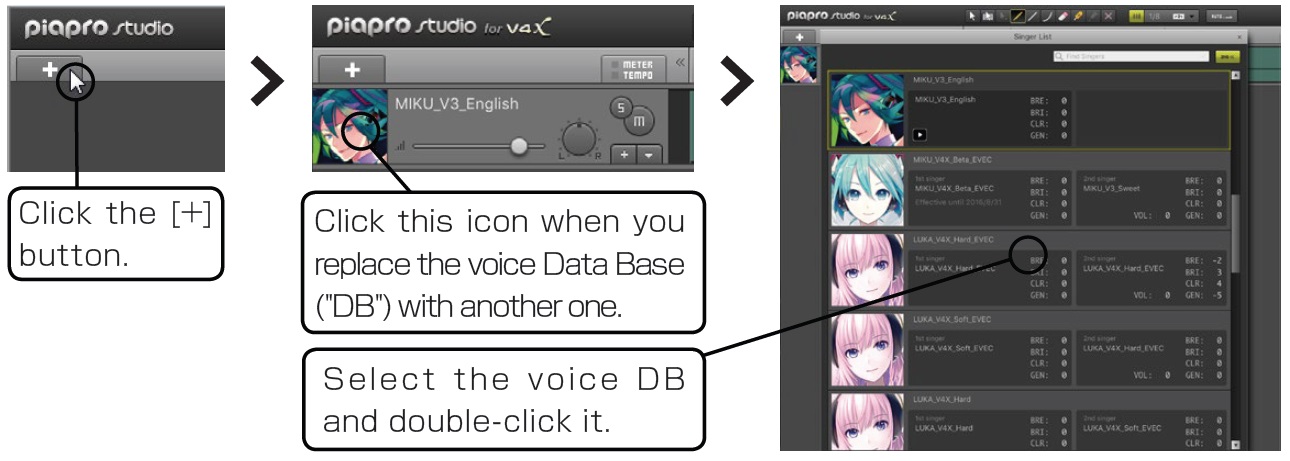
Select Singer
Selects/reassigns the vocalist database to selected track. When the Vocal Track has already been selected, this menu will change to "VOCALOID3 Track Setting". Please double-click on the new vocalist database.
For using Voice Libraries other than Crypton products, you need to get a special Access Key that can be applied for via SONICWIRE. Please check piaprostudio.com (https://piaprostudio.com/?p=4067) for details.
Mute/Solo
Mute Track
Mutes selected track
Solo Track
Only the selected track will play back
Unmute / Unsolo All Tracks
Clears all the Mute/Solo settings
Automation Track
Select Automation Tracks
Open the Automation Track for the selected track. When the Vocal Track has been selected, [Select Automation Track] window will pop up. Please click on the desired item in this screen to show the appropriate Automation Track.
Close Automation Tracks
Closes the Automation Tracks for the selected Vocal Track
Track Layering
It will be possible to change the order of the layers in the next track layer and the previous track layer.
Export Track
Export the selected Track into WAV format file.
Region

Mute Region
Mutes selected Region. The Region muted turns gray. When you select the muted Region, this menu will change to "Unmute Region"
Render Region
This function will be implemented in the next version of Piapro Studio
Export Region
Export the selected Region into WAV format file.
Note

Transpose
Half Tone Up
Sets the selected note half step up
Half Tone Down
Sets the selected note half step down
1 Octave Up
Sets the selected note 1 octave up
1 Octave Down
Sets the selected note 1 octave down
Edit Lyrics
Opens the "Lyrics Palette" for the selected notes
Edit Singins Style
Opens the "Singing Style Palette" for the selected notes
Edit Vibrato
Opens the "Vibrato Style Palette" for the selected notes
Normalize
Releases the overlapping notes automatically
Sound Preview On
When this feature is turned on, you will be able to have a preview of the pronunciation when clicking on or dragging the notes.
View

Minimize Track Header
Minimizes/Narrows the track header of the Vocal Track
Close Meter / Tempo Track
Closes the Meter / Tempo Track shown on the screen.
Track Height
Minimize selected track
Minimizes the height of selected Vocal or Automation Track
Selected Track Standaed Size
Normalizes the height of selected Vocal or Automation Track to default
Minimize All Tracks
Minimizes the height of all Vocal and Automation Tracks.
All Tracks Standard Size
Normalizes the height of all Vocal and Automation Tracks to default.
Scroll
Scroll to Previous Bar
Scrolls 1 bar to the left
Scroll to Next Bar
Scrolls 1 bar to the right
Scroll Left
Scrolls left along contents
Scroll Right
Scrolls right along contents
Zoom In
Zooms in to displayed contents
Zoom Out
Zooms out of displayed contents
Zoom to Selection
Zooms in to the selected area
Vertical Zoom Out Piano Roll
Shrinks Piano Roll contents vertically
Vertical Zoom In Piano Roll
Expands Piano Roll contents vertically
Wallpaper
Open Wallpaper
You can set an image file(PNG, JPG, BMP, GIF (still image)) as the wallpaper.
Wallpaper Settings
Open "Wallpaper Settings" window.
Clear Wallpaper
Clear Wallpapaer.
Transport

Playback
Plays track in Piapro Studio. Playback in DAW Host Application will still be prioritized over this command.
Stop
Stops Piapro Studio
Locate Song Start
Moves playback bar to the head of the first bar
Go To Previous Bar
Moves playback bar 1 bar back
Go To Next Bar
Moves playback bar 1 bar forward
Locate Loop Start
Moves playback bar to the Loop starting point
Locate Loop End
Moves playback bar to the Loop ending point
Go To Previous Marker
Moves playback bar 1 maker back
Go To Next Marker
Moves playback bar 1 maker forward
Loop Playback On
Enables Loop playback. When turned on, the song will be repeated within the yellow colored area.
Auto Scroll On
Auto scroll during the playback: the display follows the song position.
Loop Selection
Loops the area that has been selected with the Selection Tool
Settings (Windows Only)

Preferences
Displays the Preference Panel
Languages
Choose your desired language (Japanese, English, Trad. Chinese)
Change Graphics Engine
Selects the graphics engine for Piapro Studio. If you have problems with the graphics, try to select DirectX or Windows GDI.
Help

Operation Manual
Shows the operation manual (PDF)
Check For Updates
Automatically checks for updates (requires Internet Connectivity)
piaprostudio.com
Links to the Piapro Studio special website.
About Piapro Studio
Shows a small screen describing the current version
General
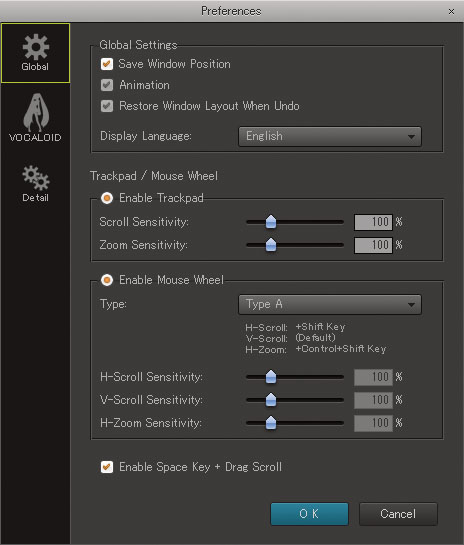
| Save Window Position | When checked, the position of Piapro Studio window will be saved in the data of Host Application. |
| Animation | This function will be implemented in next version of Piapro Studio. |
| Restore Layout When Undo | This function will be implemented in next version of Piapro Studio. |
| Enable Trackpad | If you work with Apple-made trackpad, you can enable scrolling and zooming by checking this box. |
| Enable Mouse Wheel | You can enable scrolling and zooming in Piapro Studio with your mouse wheel by checking this box. |
| Enable Space Key + Drag Scroll | Enable scrolling with Space Key + Drag by checking this box. |
VOCALOID
Basic Setting
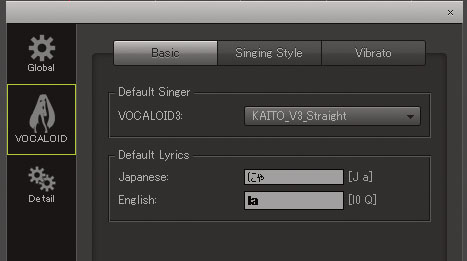
| Default Singer | You can select the Vocal Database that will automatically be assigned when creating a new track. |
| Default Lyrics | You can enter new default lyrics that will automatically be assigned when inputting notes. |
Singing Style
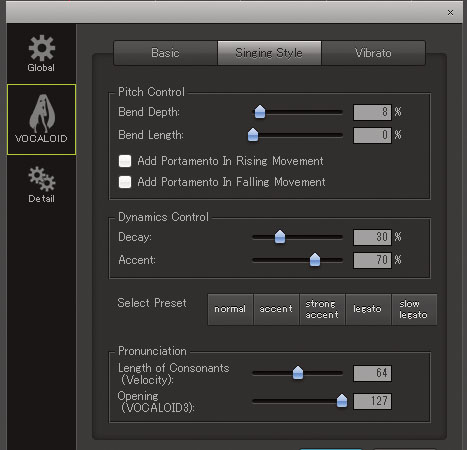
| Bend Depth | Depth of pitch bend added to the start of the notes. |
| Bend Length | Length of pitch bend added to the start of the notes. |
| Add Portamento In Riging Movement | If a note is higher than the previous note, the next notes start with running up pitch slide. |
| Add Portamento In Falling Movement | If a note is lower than the previous note, the next notes start with running down pitch slide. |
| Decay | Indicates how the sound becomes silent. A small value keeps a constant amount of volume. If this value gets higher, the volume gradually decays. |
| Accent | Nuance of the Attack. Smaller value makes the Attack sound soft, and vice versa |
| Select Preset | Selects the Singing Style from the Presets. |
| Length of Consonants (Velocity) | Sets the velocity value |
| Opening | Sets the value that indicates how wide the singer's mouth opens |
Vibrato
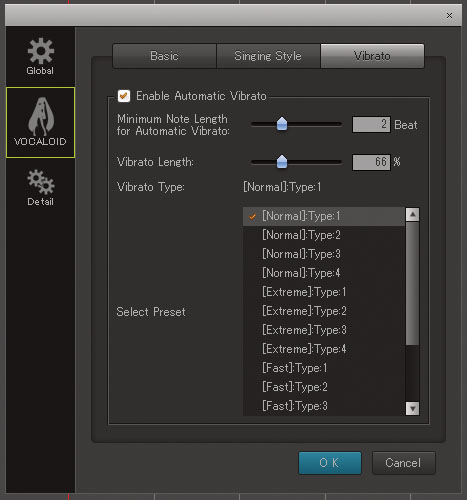
| Enable Auto Vibrato | When checked, all inputted notes will automatically have a default vibrato |
| Minimum Note Length for Auto Vibrato | Notes longer than this length have Auto Vibrato. |
| Vibrato Length | Sets the default length of the Auto vibrato |
| Vibrato Type | Indicates current vibrato type |
| Select Presets | Select the Auto Vibrato from the presets |
Detail
System
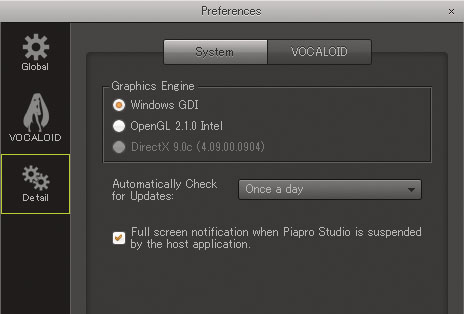
| Graphics Engine | Indicates current graphics engine. You can see the device name and the driver version number in parentheses. |
| Automatically Check for Updates | The interval between auto updates. As this function requires accessing the server of Crypton Future Media. Internet Connectivity is needed. |
| Full screen notification when Piapro Studio is suspended by the host application | Please see the Piapro Studio portal site for details. https://piaprostudio.com/?p=5654&lang=en |
VOCALOID
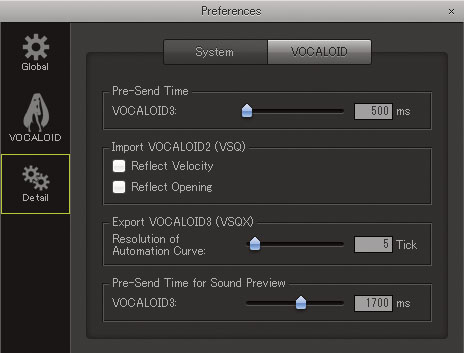
| Pre-Send Time | Vocal sound can be heard a little bit earlier than actual timing (The sound of "Su" from phonetic [S] is a good example). You can set this Pre-send Time to send the event on appropriate timing in milliseconds so that the voice and the words will sound more natural and realistic. This value will be indicated in the "Pre-send Area" that exists at the head of the first bar. |
| Import VOCALOID2 (VSQ) | When you import a VSQ file, the Velocity data and Opening data can be managed by these settings. You can import or ignore this data. |
| Export VOCALOID3/4 (VSQX) | You can set the resolution of the Automation Track when exporting a VSQX file. |
| Sound Preview Pre-send Time | You can preview the pronunciation by clicking on the piano roll keyboard or on the notes themselves. |
Tool Bar

| 1 | Piapro Studio | Links to the Piapro Studio special website. |
| 2 | Selection Tool | Tool for selecting Tracks, Region, Notes and Automation. |
| 3 | Range Tool | Every Region, Notes or Automation can be selected by dragging this tool. Also, you can set the loop area by dragging in Bar line (to be described). The Loop area will be highlighted in yellow. |
| 4 | Timestretch Tool | This function will be implemented in next version of Piapro Studio. |
| 5 | Pen Tool | Tool for creating Region, Notes and Automation curves. |
| 6 | Line Tool | Tool for drawing a straight line in the Automation Track. |
| 7 | Curve Tool | Tool for drawing a curved line in the Automation Track. |
| 8 | Erase Tool | Tool for creating Region, Notes and Automation curves. |
| 9 | Split Tool | Tool for cutting Region and Notes. |
| 10 | Glue Tool | This function will be implemented in next version of Piapro Studio. |
| 11 | Mute Tool | Tool for muting Region or Notes by clicking on them. |
| 12 | Snap On/Off | Switches the snap function. |
| 13 | Snap Value | Selects the absolute defined value for Regions or Notes which snap to the vertical grid. |
| 14 | Triplets | Changes snap grid into Triplets. |
| 15 | Auto Scroll | When playback starts, the screen will automatically scroll synchronized with the song. |
| 16 | Preference Panel | Opens "Preference Panel" screen. See also the chapter "Menu" |
Bar Line

The number shown in this line means the number of bars and is synchronized with the Host Application. By clicking the Selection Tool, the red playback bar (vertical line) moves to the pointer. Then you can assign the playback point or pasting destination. By dragging in this area using the "Range Tool", you can set the loop area. The loop area is highlighted in yellow.
You can insert / move / delete "markers" in the Major Bar. The Marker Tool is really useful when you want to put "marks" on a VOCAL Track for later use.
Insert Marker
You can insert a new marker by right-clicking on the Major Bar and choosing "Insert a marker" menu. When you insert markers, numbers and alphabetical letters will be automatically assigned to each marker in the order they were inserted. Inserting markers will function based on "Snap On/Off" and "Snap Value". If you are having trouble inserting a marker to where you want it to be, please make sure that the "Snap" option is on or change the "Snap Value".
Move Marker
You can move a marker by dragging. Moving a marker is also influenced by "Snap On/Off" and "Snap Value".
Show / Hide Markers
You can show and hide all markers by right-clicking on the Major Bar and selecting "Show Markers".
Erase Marker
You can erase a marker by right-clicking on the marker you want to erase and selecting "Erase Marker".
Exported File and Markers
When you export a vocal part as a Piapro Studio Song File(.ppsf), it will include all markers, but if you export it with different file formats* markers will not be included. (*VOCALOID3/4 Sequence files and MIDI files.)
Meter / Tempo Track

Displays Meter and Tempo data saved in files (Piapro Studio Song File, MIDI, VSQ, VSQX) that can be imported via [File] > [Import] in the Menu or via drag & drop function.
When creating a song that frequently changes in Meter or Tempo, then first export a MIDI File with this data in the Host Application (DAW Application). You can then import the exported MIDI File via [File] > [Import] > [Meter and Tempo] in the Menu of Piapro Studio. By doing this, the Host Application (DAW Application) and Piapro Studio will be precisely synchronized.
Please note that the option "Export Meter / Tempo Track" will be implemented in the next update.
Display/Hide of Meter/Tempo Track

You can display or hide the Meter / Tempo Track by clicking the button shown on the left.
Import

By turning off button [A] shown on the left, Meter and Tempo of the track will not be imported. Instead, the track will be synchronized with the Meter and Tempo setting of the Host Application (DAW Application).
Track

Track is the place where you input the notes, lyrics, and the performance parameters for the vocal part. You can use several tracks in Piapro Studio. Also, each track can have one vocal database. By making use of tracks, you can switch the vocal database along with a song or you can establish refined choruses.
Creating a New Track

You can make a new track by clicking on this button. The default vocal database that is set in [Default Singer] in [Preference Panel] will be automatically assigned to a new track.
Track Header detail
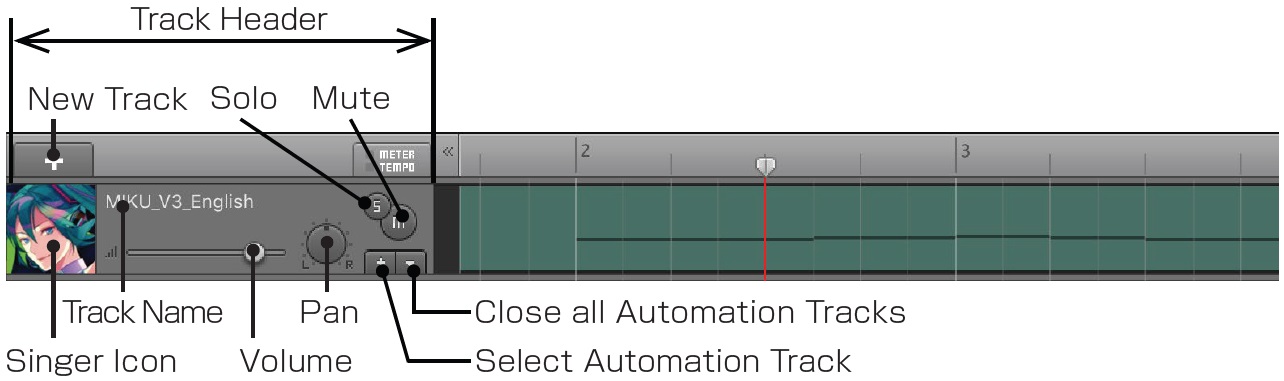
| New Track | Creates a New Track |
| Vocalist Icon | Displays the icon/picture and the name of the selected singer. By clicking the icon, the [VOCALOID 3 Track Setting] window will appear. In this window you can:
Change the Singer |
| Track Name | Indicates the default voice DB name that is set for Default Singer in the Preference Panel. You can change this text by double clicking on it. |
| Volume | Track volume. |
| Pan | Volume balance of the stereo channel. |
| Solo | If you have several tracks, all the other tracks will be muted. You can select several solo tracks by pressing Shift+click. |
| Mute | Mutes the Track |
| Select Automation Track | "Select Automation Track" window will be displayed. Please check the items you want to show on this screen for displaying the selected Automation in the track. |
| Close All Automation Tracks | Closes all Automation Tracks shown on the screen. |
Context Menu
Context menu will be shown when you right click on the track.
| Duplicate Track | Copies selected track. When the track contains the Region, it will also be copied. |
| Delete track | Delete selected track. When the track contains the Region, it will also be deleted. |
| Select Singer | [VOCALOID3 Track Settings] window will be shown |
| Mute Track | Activates Mute button |
| Solo Track | Activates Solo button |
| Unmute / Unsolo All Tracks | Clear all Mute/Solo settings |
| Select Automation Track | [Select Automation Track] window will be shown. Please click on the Automation Track you want to have displayed. |
Region

To write notes and lyrics, you need to create a Region on the Vocal Track using the Pen Tool. The Piano Roll Editor will be shown for inputting notes and lyrics by double clicking on the Region. Please double click on the Piano Roll or Track Header to close the piano roll.
Changing Region Length
You can change the length of a Region by dragging the edges of it.
Selecting Region
You can select a Region by clicking the Selection Tool or Pen Tool, and the selected Region will be highlighted. By holding down the Ctrl(Win) / Command(Mac) Key, you can select several Regions. Dragging with the "Range Tool", all Regions on same time axis will be selected.
Moving and Copying Regions
Regions can be dragged and moved anywhere. You can even move it to other Vocal Tracks. If there are no other tracks, you can drag and drop down to create a new track. If you drag and drop down while pressing the Ctrl(Win) / Option(Mac) Key, you can copy the Region.
Dividing Region
Click on the position you want to cut using the Split Tool.
Delete Region
Select a Region, then hit Delete key or Backspace key.
Rename Region
Double click on the Region name.
Context Menu in Region
By right clicking on a Region, you will see these features:
| Mute Region | Mutes a Region |
| Render Region | This function will be implemented in the next version of Piapro Studio |
| Export Region | Exports a Region into WAV format |
Piano Roll
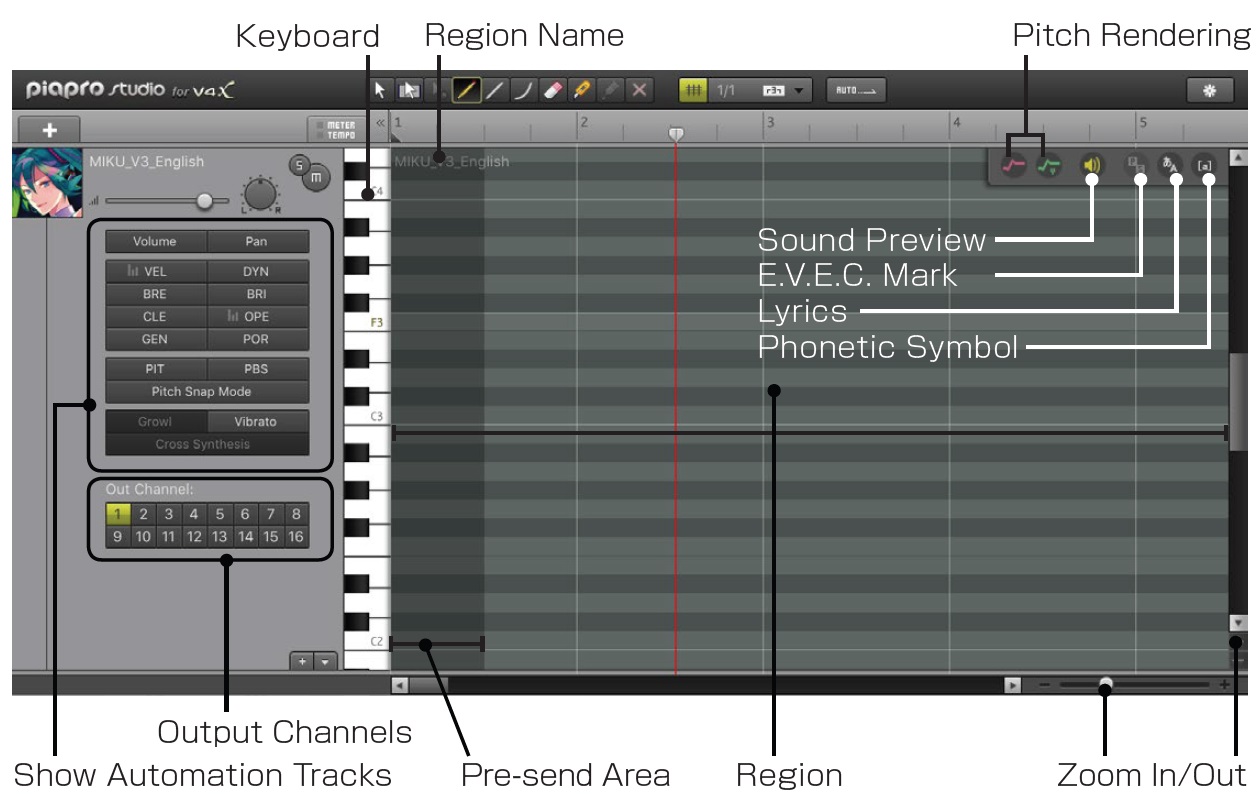
| Keyboard | Indicates the pitch of a note. |
| Region | This is the area where you can input notes. You can change the length by dragging the edge. |
| Region name | Indicates Region Name. You can modify this text when the Piano Roll is closed. |
| Pitch Rendering | Pitch rendering enables a display of pitch and vibrato to let you confirm by sight how effectively it is applied to the voice. |
| Sound Preview | When this feature is turned on, you will be able to have a preview of the pronunciation when clicking on or dragging the notes. |
| E.V.E.C. Mark | You can show/hide the E.V.E.C. Marks. |
| Lyrics | You can show/hide the Lyrics. |
| Phonetic Symbol | You can show/hide the Phonetic Symbol. |
| Automation Track Button | You can show/hide the Automation Track. Please refer to the chapter "Automation Track" for more details. |
| Output Channels | Select the output channels connected to the Host Application. |
| Pre-send Area | Vocal sound can be heard a little bit earlier than actual timing (The sound of "Su" from phonetic [S] is a good example). It can be shown in the head of the first bar. Please be careful that the notes written inside this area are soundless. Its length refers to the setting in "Pre-send Time" in [Preference Panel] window. |
| Zoom In/Out | Zoom In or Out of the contents. |
Notes
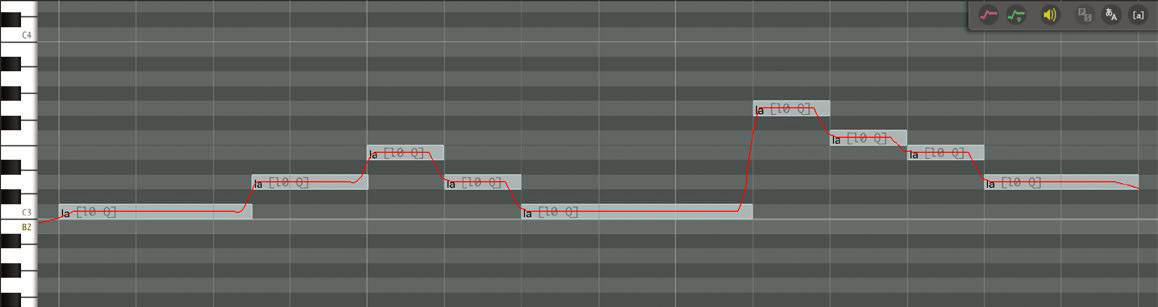
Inputting Notes
You can input a note by dragging inside the Piano Roll using the Pen Tool. You can also create a note using the Selection Tool: just hold down the Ctrl key and it turns into the Pen Tool. The default lyrics will be automatically assigned to the note right after you input on the Piano Roll ([La] in the English version). Default lyrics are set in the [Preference Panel].
Select Notes
You can select notes by clicking the Selection Tool or Pen Tool, and the selected notes will be highlighted. With Ctrl key, you can select several notes. Dragging with "Range Tool", all notes on the same time axis will be selected.
Moving and Copying notes
Notes can be dragged and moved anywhere. You can even move it to other Vocal Tracks. If there are no other tracks, you can drag and drop down to create a new track. If you drag and drop down while pressing the Ctrl(Win) / Option(Mac) Key, you can copy the notes.
Delete notes
Select a note, then hit Delete key or Backspace key.
Lyrics
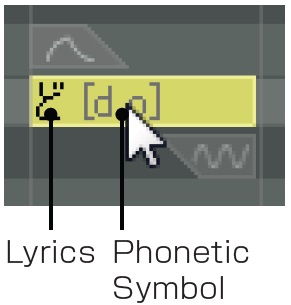
By double clicking on the note, the "Lyrics Palette" will be shown where you can input lyrics.
Lyrics Palette Detailed Settings
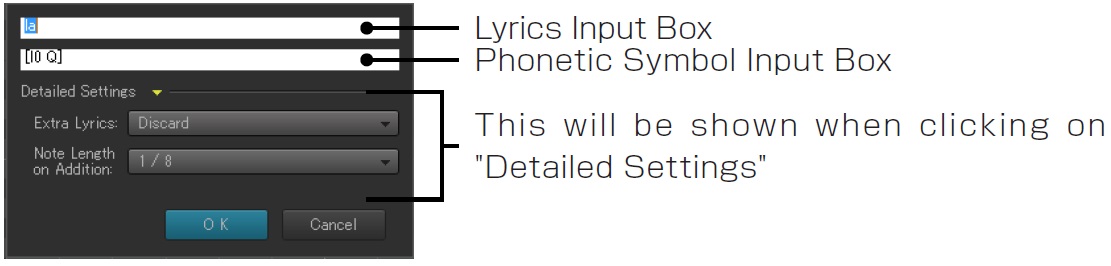
| Lyrics Input Box | You can type in Hiragana / Zenkaku Katakana / Roman characters (single byte) for the Japanese vocal database. When you type in Roman characters, each word must be delimited by a single byte blank space. When you use the English vocal database, please input Roman characters and single blank spaces. The usage of Voice Libraries with a language other than Japanese or English is not yet supported. It will be implemented in the next update. |
| Phonetic Symbol Input Box | When you input something into the Lyrics Input Box, this field is automatically filled with the phonetic symbols. The appendix of this manual contains all phonetic symbols. Please type in these symbols directly when necessary. The manually inputted phonetic symbols will turn red. When overwriting on the red characters, the [Assign Lyrics] window will be shown. Please click "Yes" and reassign Lyrics and phonetic symbols. |
Included in Notes
| Small "tsu" | Treat "tsu" and short sounds as one note. |
| Long Tone "-" | Treat "-" and short sounds as one note. |
Extra Lyrics
| Discard | Cuts off the lyrics because of notes shortage. |
| Add Extra Note | Add notes automatically on notes shortage. |
| Sum up in Last Note | Sum up all lyrics into the last note on notes shortage. Dividing the note using the Split Tool, the lyrics will also divided. |
| Note Length on Addition | Length of the note that will be automatically added on notes shortage. |
E.V.E.C.
* This function is only available on voice libraries with "E.V.E.C." function.
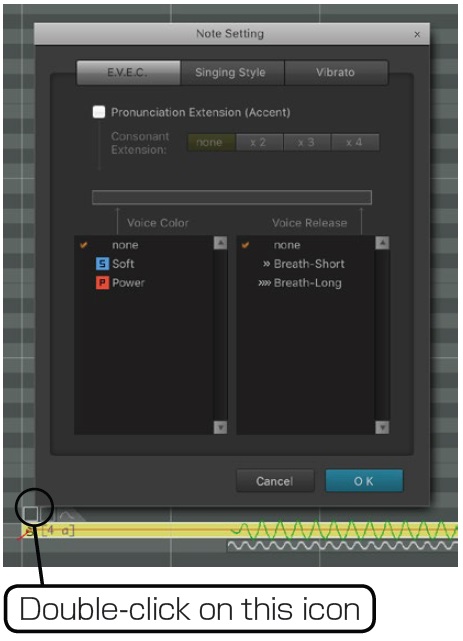
"E.V.E.C." (Enhanced Voice Expression Control) is a newly developed function to expand the singing voice’s expression. "E.V.E.C" enables you to control detailed voice expressions, setting release length and intensity of breaths, as well as emphasizing consonants for more intensity. Get closer to your imagination of a dynamic VOCALOID singing voice than never before!
Pronunciation Extension Function (KAGAMINE RIN/REN V4X ONLY)
Expand pronunciation and accentuation of "KAGAMINE RIN / LEN V4X" by turning this function on. Pronunciation Extension does not work with single vowels (a, i, u, e, o). You need notes containing at least one consonant. "Consonant Emphasis Function". This function enables emphasizing consonants by layering them several times and giving them more strength.
Voice Color
This new function supports overall voice expression through enabling the selection of various voice expressions at each note, shaping the voice into strong, cute or soft phrasings.
Voice Release
The Falsetto Function enables controlling the breath amount at the end of a word, e.g. create a slow and sexy breath out at the end of the word, etc.
| Breath-Long: | Add a long breath at the end of a word to create a slow and easy atmosphere at the end of a long vocal part. |
| Breath-Short: | Add a short breath at the end of a word, even in smaller vocal phrases. |
Consonant Extension Function (MEGURINE LUKA V4X ONLY)
This function enables emphasizing consonants by layering several consonants.
Singing Style
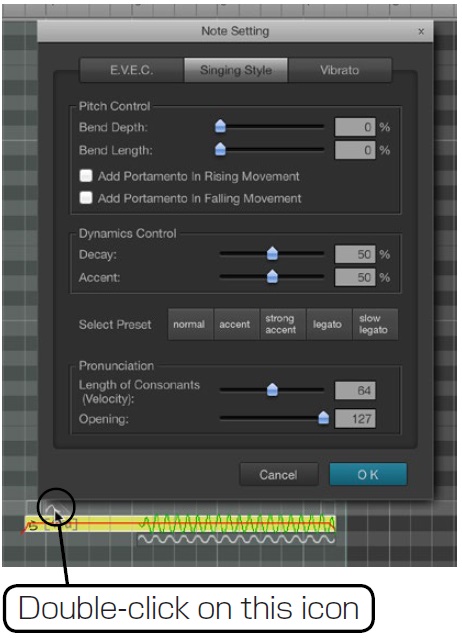
You will see an icon that pops up on the top left of a note when hovering over it. When double clicking the icon the Singing Style window will open. If you select several notes and click the icon, you can set the style for all the notes at once.
| Bend Depth | Sets the depth of the pitch bend added to the head of the note. |
| Bend Length | Sets the length of the pitch bend added to the head of the note. | Add Portamento In Riging Movement | If a note is higher than the previous note, the next notes start with running up pitch slide. | Add Portamento In Falling Movement | If a note is lower than the previous note, the next notes start with running down pitch slide. | Decay | Indicates how the sound becomes silent. A small value keeps a constant amount of volume. If this value gets higher, the volume gradually decays. | Accent | Nuance of the attack. Smaller value makes the attack sound soft, and vice versa. | Select Preset | Selects the Singing Style from the Presets. | Length of Consonant (Velocity) | Sets the velocity value | Opening (VOCALOID3) | Sets the value that indicates how wide the singer's mouth opens |
Vibrato
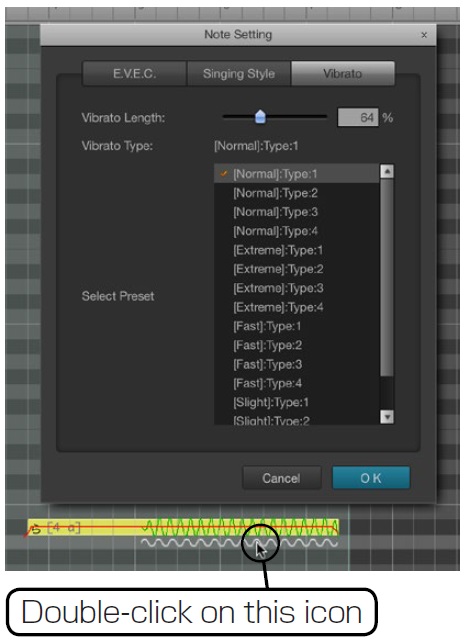
When you move the mouse over a note, you will see a wavy line icon on the bottom right of it. Double click the icon to open the Vibrato window.
If you select several notes and click the wavy line, you can set the Vibrato for all the notes at once.
| Vibrato Length | Default length of the auto vibrato |
| Vibrato Type | Indicates current vibrato type |
| Select Preset | Selects the preset for Auto Vibrato |
Automation Track
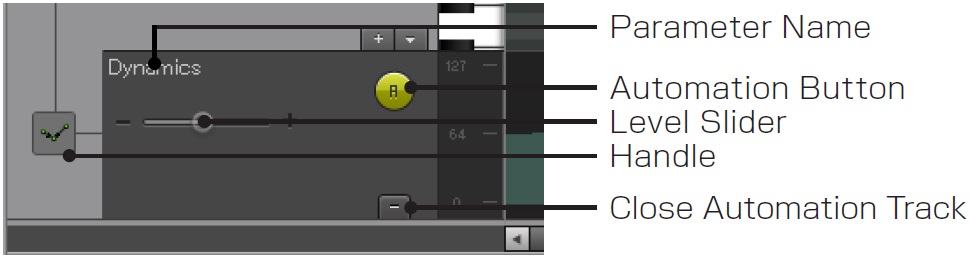
| Parameter Name | Each parameter name will be shown here. The detail of the parameter will be described later. |
| Handle | If there are several Automation Tracks, you can change their order by dragging this handle. |
| Slider | You can change the parameter value only when the blue horizontal line is indicated here. After you created the curved line using the Pen Tool, this function will be disabled. |
| Automation Button | Turn On/Off Automation. Automation curves that are turned on will be highlighted in yellow and applied to the playback. This button is not available for [VEL] Velocity and [OPE] Opening. |
| Close Automation Track | Close Automation Track |
The prepared parameters and their abbreviation
| Volume | Track volume |
| Pan | Controls the stereo channels balance. |
| Velocity (VEL) |
Controls the length of the consonant. Increasing this value shortens the consonants at the head of the lyrics, which emphasizes the Attack of the pronunciation. Decreasing this value causes each consonant (especially "s" or "f") to be extended and create a slower sound with less attack |
| Dynamics (DYN) |
Controls Dynamics - volume, mellowness, crescendo and diminuendo |
| Breathiness (BRE) |
Controls how breathy the voice is. Higher value makes the vocals more breathy. |
| Brightness (BRI) |
Controls the high frequency of the vocals. Higher values make the vocals bright and brilliant. Lower values make them smooth and chilled. It is suggested to decrease this value to makea gentle and whispery phrase. |
| Clearness (CLE) |
The function of this parameter is similar to Brightness, but the result is slightly different. Higher values make the vocals clear and sharp, lower values make it thicker and deep. |
| Opening (OPE) |
Controls the size of the mouth opening. Higher values mean a larger opening of the mouth. |
| Gender Factor (GEN) |
Controls the formant of the vocals. Higher values make the vocals appear more male, and lower ones make it sound more feminine. You can create cartoon character-like vocals by utilizing this parameter. |
| Portamento Timing (POR) |
Controls the position of the por tamento, where the pitch changes. |
| Pitch (PIT) |
Controls the pitch. The range of this parameter is -8192 to 8191. 0 makes no change. With the maximum value of the parameter "Pitch Bend Sensitivity (discussed below)", you can control the pitch up to 2 octaves. |
| Pitch Bend Sensitivity (PBS) |
Controls the amount of change of the Pitch above. In "24" (24 half steps) you can shift pitch +/- 2 Octaves and in "12" (12 half steps) you can shift pitch +/- 1 octave. |
| Singer | This function will be implemented in the next version of Piapro Studio |
| Vibrato | Vibrato Depth controls the depth of the vibrato, whereas the Vibrato Rate controls the speed of the vibrato. |
Input Automation
You can enter an automation by using the Pen Tool. When this tool is already selected, you can also just press and hold the Ctrl (Windows) / Option (Mac) Key while dragging in the Automation Track.
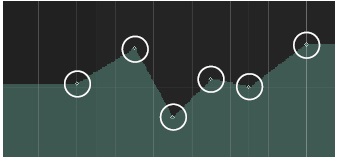
The Automation Track of Piapro Studio operates with the interpolation mode (in a straight line connecting the dots), which allows you to enter the automation by simply clicking on the Pen Tool in the Automation Track.
Edit Automation
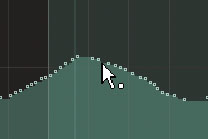
A dot will appear when you hover the mouse over the automation (see image on the left). If you move this up, down, left or right (by choosing the backspace key or delete key), you can edit the automation easily. You can also add a dot by clicking on the pencil tool.
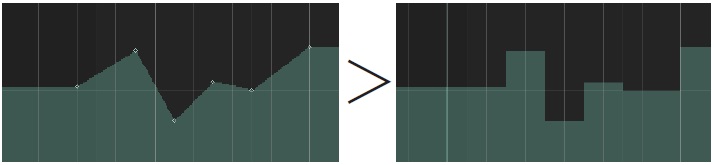
If you click on the dot in the selection tool by holding down the Alt (Win) / Command (Mac) Key, you can switch the interpolation mode or hold mode (same value until the next dot).
Select, Move, Copy Automation
Dragging with Selection Tool, you can select every parameter within the area. Dragging with Range Tool, you can select every event on the same time axis. Selected Parameter can be moved to the left and right. By dragging the selection with holding down the Ctrl key, you can make a copy.
Delete Automation
A curve styled Automation can be deleted after being selected by the Selection Tool or Range Tool. Select them and hit Delete key or Backspace key. The parameter that belongs to notes (Velocity and Opening) cannot be deleted.
Height of the Automation Track
Double click on the Automation Track maximizes its height. Double click with Ctrl key minimizes the track. Double click while holding the Ctrl key + Shift key minimizes all Automation Tracks of one track.
Context Menu
Context menu will be shown when you right click on the track.
| Select Automation Track | [Select Automation Track] window will be shown. Please click on the Automation Track you want to show. |
| Close Automation Track | Close Automation Track |
| Close all Automation Tracks | Close all Automation Tracks |
Create a chorus by layering the Region
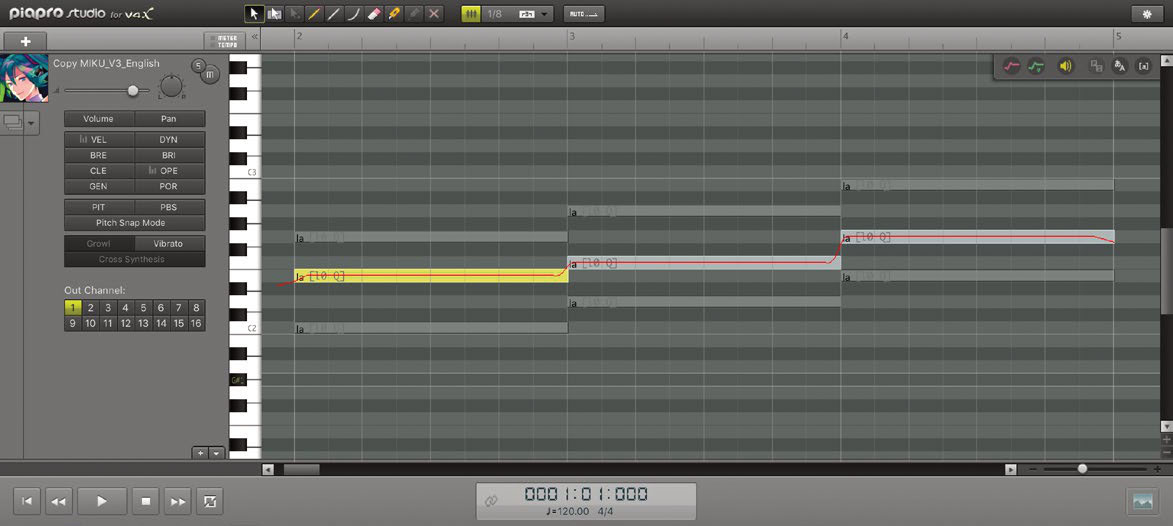
After choosing multiple regions (hold down the shift key and click on each region in order), open the piano roll. The selected regions will be displayed as layers. On the very top layer, the region and notes will be highlighted, and everything else behind that will be dimmed.
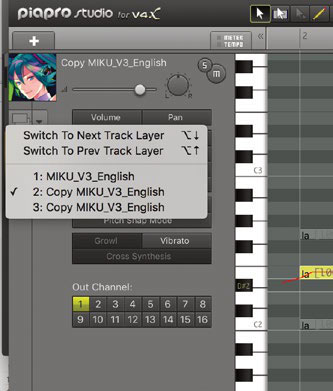
When layering a region, a button will be added underneath the singer' s icon (see image on the left). It will be possible to change the order of the layers in the next track layer and the previous track layer.
The items underneath this can be switched directly to the track you want to edit. You can either click on the notes or switch to the track you want to edit.
How to use VOCALOID Voice Libraries other than Crypton Products
From Piapro Studio version 1.2.0, you can assign any VOCALOID3/4x Voice Library to the track (*1), including VOCALOID2 Voice libraries which are converted to VOCALOID3 format(*2).
As for VOCALOID3 Voice libraries other than Crypton Products (Crypton Products such as HATSUNE MIKU V3 or KAITO V3 etc.), you can get a special “Access Key” that can be applied for via the website SONICWIRE.
SONICWIRE is website service run by Crypton Future Media. The Access Key is free. Following the procedure below, the library can be used in Piapro Studio instantly.
1. Click the Singer Icon on a track and open the“Singer List” window.
2. Icons with the “Key” symbol indicate VOCALOID3/4 Voice Libraries which yet have no Access Key.
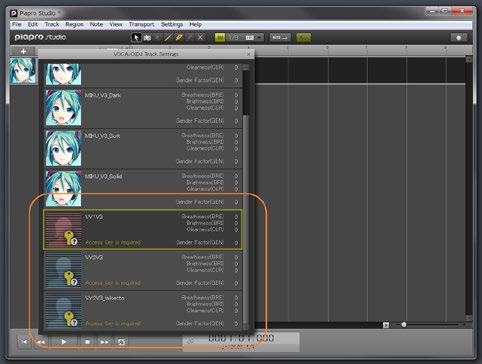
3. Click on the Singer that you want to enable.
4. The“ Apply for Access Key” window opens.
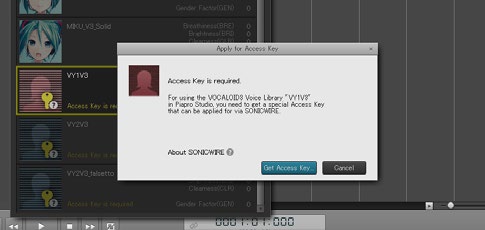
5. Click on the [Get Access Key.] button
6. The page “Apply for VOCALOID3/4 Voice Library Access Key” opens on the SONICWIRE website in your web browser.
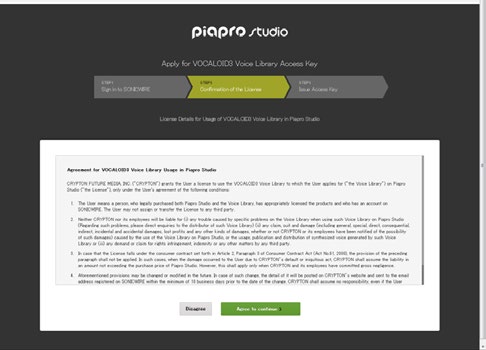
7. Confirm the licence agreement and click on the [Agree to continue] button.
8. Now the Access Key for the selected VOCALOID3/4 Voice Library will be displayed. Copy the high-lighted Access Key.
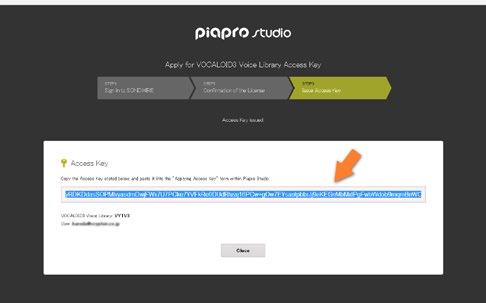
9. Then you need to switch back to Piapro Studio and paste the copied Access Key into the “Apply for Access Key” window, then click [Apply Access Key] button.
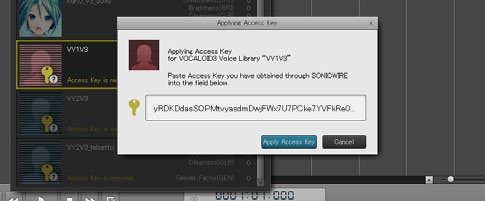
10. The “Key” symbol on the Singer Icon dissapears and now the Voice Library is ready for use.
Once you follow this procedure for each Voice Library, you can use it from there at any time.
(*1) You need the Mac versions of the VOCALOID3/4 Voice Libraries in order to use it on a Mac environment.
(*2) Importing VOCALOID2 Voice libraries is only supported on Windows OS. Please find more information directly on the YAMAHA Corporation site.
(*3) You may be able to get the Access Key again in the case of that your PC environmnent was changed, such as exchanging a hard drive.
Transport bar
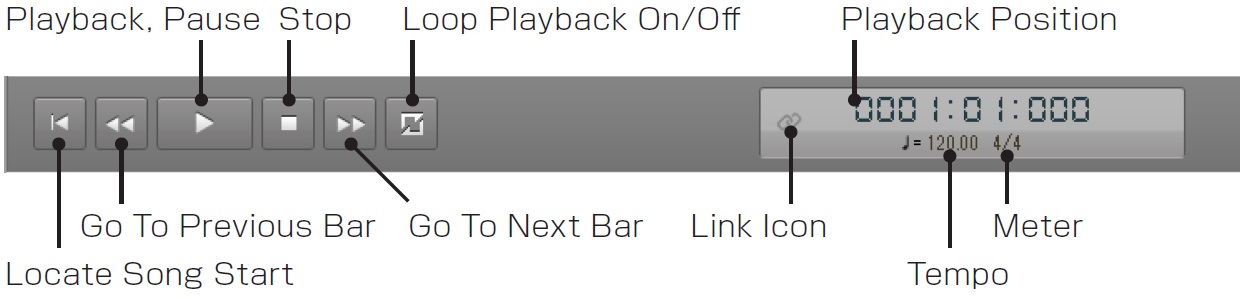
All buttons can only be active when the Host Application is stopped. Playback of the Host Application disables all buttons in Piapro Studio since Piapro Studio is synchronized with the Host.
| Locate Song Start | Playback bar (red vertical line) moves to beginning of the song. |
| Go To Previous Bar | Playback bar moves back 1 bar |
| Playback, Pause | Plays song in Piapro Studio. This button turns into the Pause Button when playing back |
| Stop | Stops playing back and Playback bar goes back to the beginning of the song. The same happens if you click on this button during pause. |
| Go To Next Bar | Playback bar moves forward 1 bar |
| Loop Playback On/Off | Switches Loop playback On or Off. When switched on, this button will be highlighted in yellow color. |
| Link Icon | This icon will be highlighted when the Host Application starts playing back. |
| Playback Position | Indicates current playback position. These numbers indicate (from left to right) Bar Number, Tempo, Tick Number. |
| Tempo | Indicates current Tempo |
| Meter | Indicates current Meter |
Wallpaper
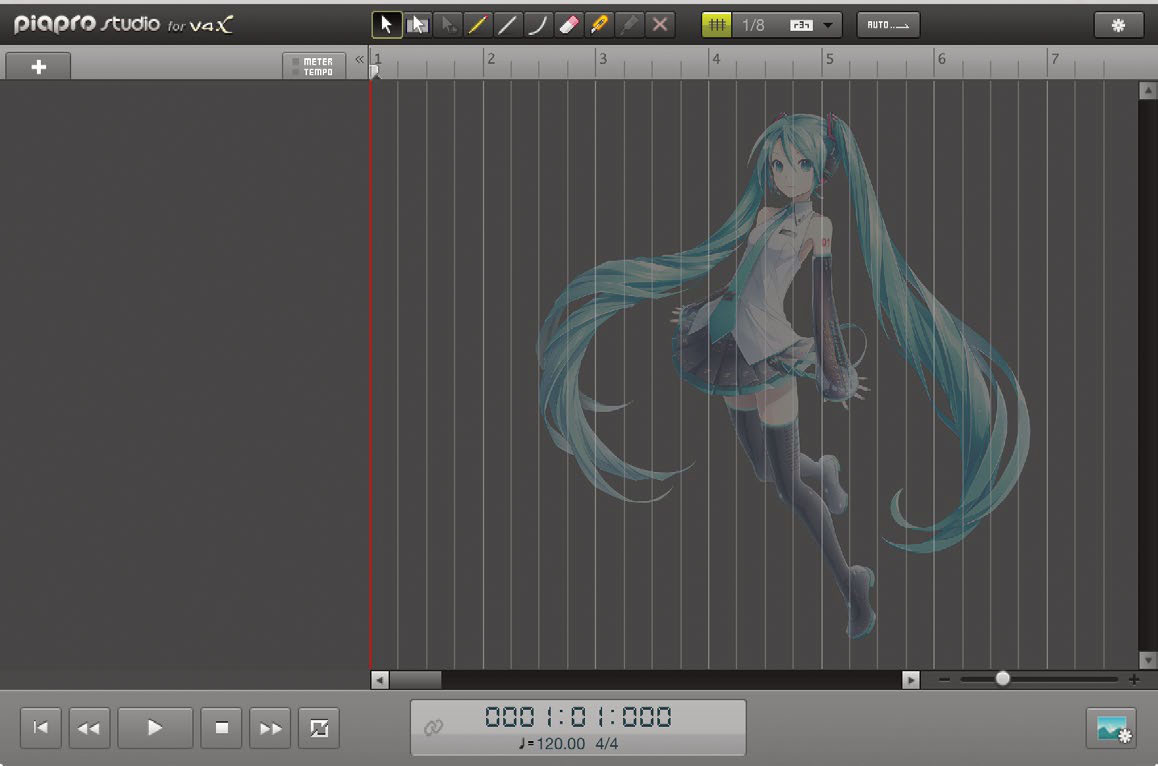
In Piapro Studio, You can set an image file (PNG, JPG, BMP, GIF (still image)) as the wallpaper.
To set the wallpaper, you can "drag and drop" an image file on the Piapro Studio screen, or you can select a file from the top menu View > Wallpaper > Open Wallpaper.
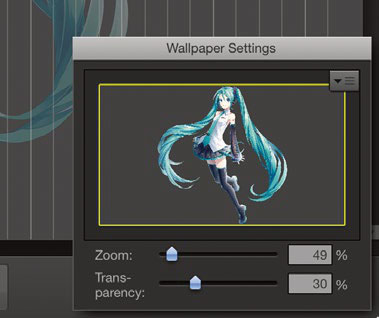
When you are done loading the wallpaper, the "Wallpaper Settings" window will appear on the lowerright corner. T hen you can edit the position / transparency / zoom level of the wallpaper.
From the submenu on the upper-right corner of "Wallpaper Set tings", you can edit/upload the wallpaper layouts (stretch the height and the width to the size of Piapro Studio) and you can also reset.
Once a wallpaper is set, you can click the "Wallpaper Settings" button on the lower-right corner of Piapro Studio.

Please be aware that if you delete or move the image file, the wallpaper will be reset.
Shortcut keys
Transport
| Space / Enter | Playback / Pause |
| [.] or Shift + Enter | Stop |
| Ctrl + [0] | Go back to the beggining of the song |
| Alt + [0] | 1 bar back |
| Alt + [ . ] | 1 bar forward |
| [0] | Move to loop start position |
| [ . ] | Move to loop end position |
| (Win) Ctrl+R (Mac) Command+R |
Loop playback On/Off |
| Shift + R or Alt + Drag | Make selected area as loop |
Tool
| 1 | Selection Tool |
| R | Range Tool |
| T | Time Stretch Tool (This function will be implemented in next version of Piapro Studio) |
| V or P | Pen Tool |
| C or K | Split Tool |
| B or L | Glue Tool |
| X | Mute Tool |
Editing
| (Win) Ctrl + Z (Mac) Command + Z |
Undo |
| (Win) Ctrl + Y (Mac) Command + Y |
Redo |
| (Win) Ctrl + X (Mac) Command + X |
Cut |
| (Win) Ctrl + C (Mac) Command + C |
Copy |
| (Win) Ctrl + V (Mac) Command + V |
Paste |
| Del or BS | Delete selected object(s) |
| Shift + Click | When first and last Region / note are clicked, all the Regions / Notes within the area will be selected |
| (Win) Ctrl + Click (Mac) Command + Click |
Select several Regions / Notes |
Track
| (Win) Shift+Ctrl+3 (Mac) Shift+Option+3 |
Create new Track |
| (Win) Shift+Ctrl+D (Mac) Shift+Option+D |
Copy selected Track |
| (Win) Shift+Ctrl+Del (Mac) Shift+Command+Del |
Delete selected Track |
| M or D | Mute selected Track |
| S | Solo selected Track |
| Shift + M or Shift + D | Unmute all Tracks |
| (Win) Ctrl+1 (Mac) Command+1 |
Minimize / Maximize Track Header |
| (Win) Ctrl+Shift+G (Mac)Command+Shift+G |
Minimize Selected Track |
| (Win) Ctrl+Shift+H (Mac) Command+Shift+H |
Maximize Selected Track |
| Shift + Alt + [Up arrow] | Minimize all Tracks |
| Shift + Alt + [Down arrow] | Maximize all Tracks |
| Alt + [Up arrow] | Switch To Next Track Layer |
| Alt + [Down arrow] | Switch To Prev Track Layer |
Region / notes
| (Win) Ctrl+Alt+M (Mac) Command+Option+M |
Mute selected Region |
| (Win) Ctrl+Alt+R (Mac) Command+Option+R |
Render selected Region (This function will be implemented in the next version of Piapro Studio) |
| (Win) Ctrl+Alt+E (Mac) Command+Option+E |
Export selected Region |
| (Win) Ctrl+Alt+Click (Mac) Command+Option+Click |
Split Tool |
| (Win) Ctrl+Click (Mac) Option+Click |
Create Region / Notes |
| (Win) Ctrl+ [Up arrow] (Mac) Command+ [Up arrow] |
Transpose selected note half step up |
| (Win) Ctrl+ [Down arrow] (Mac) Command+ [Down arrow] |
Transpose selected note half step down |
| (Win) Shift+Ctrl+ [Up arrow] (Mac) Shift+Command+ [Up arrow] |
Transpose selected note 1 octave up |
| (Win) Shift+Ctrl+ [Down arrow] (Mac) Shift+Command+ [Down arrow] |
Transpose selected note 1 octave down |
| (Win) Ctrl+Alt+N (Mac) Command+Option+N |
Normalize selected note |
| Q | Snap On/Off |
Screen Control
| [Left arrow] | Scroll 1 bar back |
| [Right arrow] | Scroll 1 bar forward |
| Shift + [Left arrow] | Scroll left |
| Shift + [Right arrow] | Scroll right |
| G or [+] | Zoom In |
| Ctrl + mouse wheel | Zoom In/Out |
| H or [-] | Zoom Out |
| Shft + Z or Shift + G | Zoom in selected area |
| (Win) Shift+Ctrl+[ (Mac) Shift+Command+[ |
Make Piano Roll smaller |
| (Win) Shift+Ctrl+] (Mac) Shift+Command+] |
Make Piano Roll larger |
| Shift + A | Auto scroll On/Off |
| (Win) Ctrl+E (Mac) Command+E |
Open Piano Roll |
| (Win) Ctrl+W (Mac) Command+W |
Close Window |
| (Win) Ctrl+; (Mac) Command + , |
Open "Preference Panel" window |
| F1 or Help | Open Manual |
How to use Mutant VSTi (Windows Only)
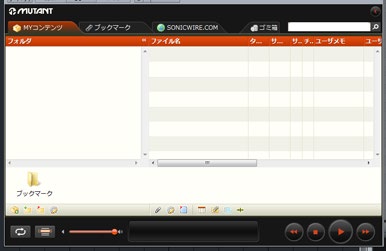
This is the VSTi version of the Sound Material Management Software "Mutant". Mutant is provided by "SONICWIRE", the Online Download Shop for Sound Material and Virtual Instruments Software.
Prepare Mutant VSTi
To start Mutant VSTi, you need to start your Host Application first. In this manual, we are going to use "Studio One Artist Piapro Edition"(Studio One)as an example.
When you create a "New Song" in Studio One, the screen below will be displayed. Click on the "Browse" button at the right bottom corner then click on the "Instruments" button.
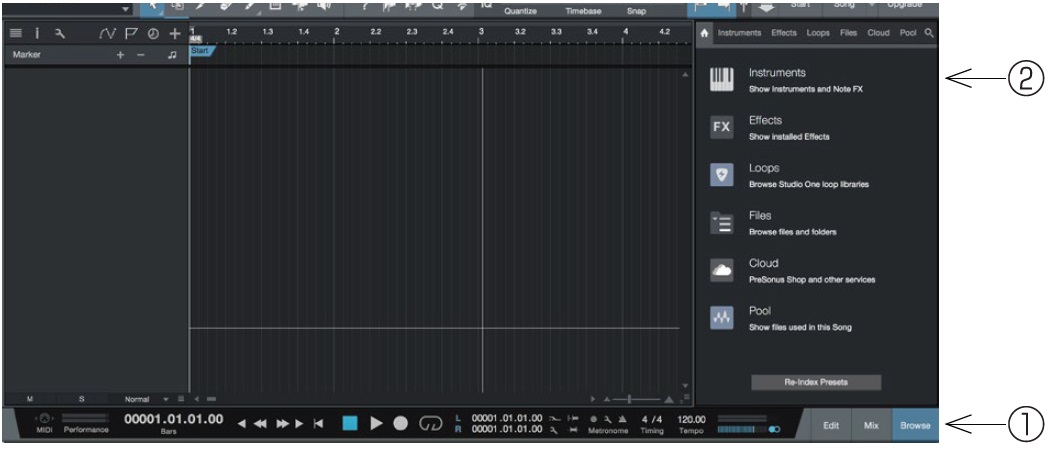
Click on "Mutant VSTi" in "Instruments", and drag&drop this from the right panel to the left as shown below.

You are ready when "Mutant VSTi" is being shown.
Register the sound to Mutant VSTi
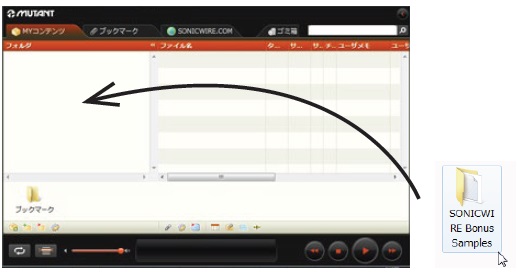
After you installed the Mutant VSTi, the "Soundroot" folder will be created in your C-drive (default OS boot hard disk) root. All Bonus Samples (SONICWIRE Bonus Samples) will be placed in the "Soundroot" folder. Please drag&drop this folder into the Mutant VSTi window.
Mutant VSTi Screen
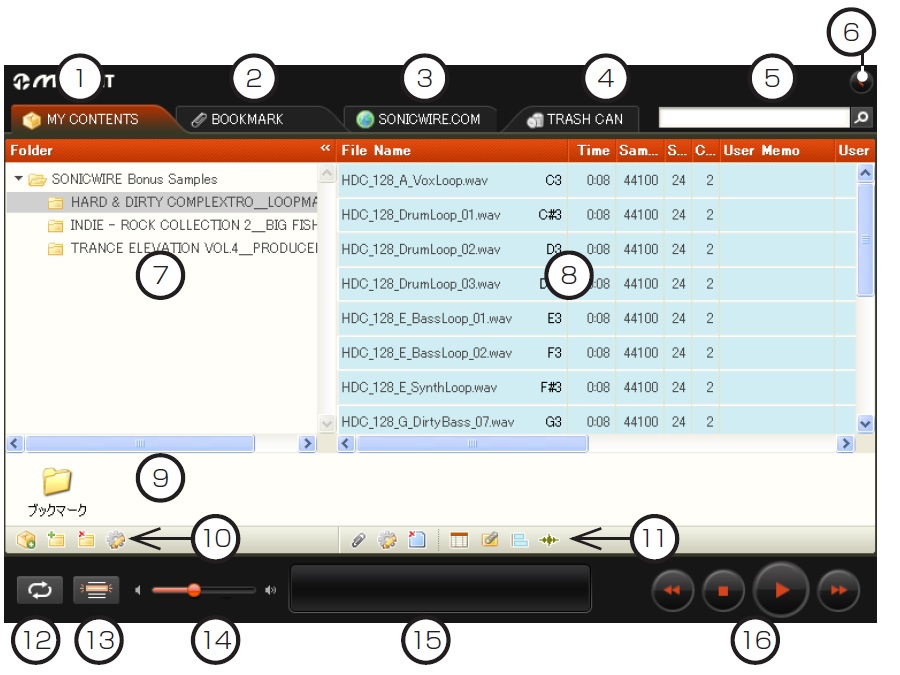
| 1 | MY CONTENTS | Switch to Sounds Library Browser |
| 2 | BOOKMARK | Switch to Bookmarks |
| 3 | SONICWIRE.COM | Show SONICWIRE.COM |
| 4 | TRASH CAN | Show files deleted on Mutant |
| 5 | Search | Search sound registered in Mutant |
| 6 | View Mode Switch | Smallen the width of Mutant |
| 7 | Folder List | Show all the folders registered in Mutant |
| 8 | Sound List | Show sounds in the selected folders |
| 9 | Bookmark bar | Always indicate the folder in Bookmarks |
| 10 | Folder List Command Button | From left to right: "Add New Directory", "Add Folder", "Delete Folder", "Property" |
| 11 | Sound List Command Button | From left to right: "Bookmarks", "Property", "Delete File", "Show/Hide Rows", "Show/Hide Time Bar", "Show/Hide Wave of the Sound" |
| 12 | Loop Playback | Turn On/Off Loop Playback |
| 13 | Go Back to Sample | Go back to currently selected sample |
| 14 | Volume | Control the volume by sliding left or right |
| 15 | Display | Display the title and time of the file now playing |
| 16 | Control button | From left to right: "Play Previous Sound", "Stop", "Play/Pause", "Play Next Sound" |
See also the Mutant special website for more details.
https://sonicwire.com/mutant/